


Fix Apple Music Collaborative Playlists Not Working
Apple Music Collaborative Playlists let you invite friends to add, remove, and manage songs together in a shared playlist. However, sometimes the feature may not work properly—you might be unable to join a playlist, accept an invitation, add songs, or sync changes with other participants.
If your Apple Music Collaborative Playlist is not working, don't worry. In this guide, we'll explain the common causes and show you effective ways to fix the issue so you can start sharing and managing music with friends again.
- How to Make a Collaborative Playlist on Apple Music?
- Why Is My Collaboration Playlist Apple Music Not Working?
-
Top 8 Ways to Fix Apple Music Collaborative Playlists Not Working
- Way 1. Check Apple Music Subscription and Collaboration Settings
- Way 2. Check Your Internet Connection
- Way 3. Relaunch the Music App
- Way 4. Restart or Force Restart Your iPhone
- Way 5. Leave and Rejoin the Collaborative Playlist
- Way 6. Update iOS and Check Sync Library
- Way 7. Reset Network Settings
- Way 8. Repair iOS with TunesKit iOS System Recovery HOT
- FAQs About Apple Music Collaborative Playlist
- Conclusion
How to Make a Collaborative Playlist on Apple Music?
With Apple Music Collaborative Playlists, you can invite friends to add, remove, and reorder songs in a shared playlist. Here's how to create one on your iPhone.
- Step 1. Launch the Apple Music app on your iPhone, then select Library located at the bottom portion of the display.
- Step 2. Navigate to the specific playlist that you wish to share with your friends.
- Step 3. Press the three-dot icon situated at the upper-right corner of the screen and choose Collaborate.

Step 4: Tap on the Start Collaboration button.
Step 5: A shareable link to the playlist will be generated. You can share this link to friends and family, allowing them to join the playlist. Share the link through various channels such as AirDrop, Messages, Mail and more.

Step 6: Alternatively, you have the option to share this collaborative playlist on Apple Music with others by generating a QR code. To do so, tap the three-dot icon located in the top-right corner and select Manage Collaboration. Next, pick the QR Code option and finalize the process by tapping Done.
Step 7: Share the QR code with your friends or family to give them access to collaborate on your Apple Music playlist.

Why Is My Collaboration Playlist Apple Music Not Working?
If Apple Music Collaborative Playlists are not working properly, the issue may be related to your account, connection, settings, or software. Here are some common causes.
- 01 Outdated iOS Version: An outdated iOS version may cause compatibility issues or prevent certain Apple Music features from working correctly. Make sure your iPhone is running the latest available version of iOS.
- 02 Apple Music Subscription Issues: Collaborative Playlists require an active Apple Music subscription. If your subscription has expired or there is a problem with your account, you may be unable to create or join a collaborative playlist.
- 03 Unstable Internet Connection: Apple Music needs a reliable internet connection to send invitations, join playlists, and sync changes between collaborators. A weak Wi-Fi or cellular connection may cause collaboration features to stop working.
- 04 Collaboration Approval Is Required: If the playlist owner has enabled Approve Collaborators, you cannot join immediately. You need to send a request and wait for the owner to approve it.
- 05 Sync Library Is Disabled: If Sync Library is turned off, changes to your Apple Music library may not sync correctly across your devices.
- 06 Temporary Software or Apple Music Issues: Temporary iOS glitches, Music app errors, or service-related problems can also prevent a collaborative playlist from loading, syncing, or accepting new participants.
- 07 Regional Availability: Apple Music and some of its features are not available in every country or region. If you or another participant is in an unsupported region, collaboration may not work as expected.
Top 8 Ways to Fix Apple Music Collaborative Playlists Not Working
If Apple Music Collaborative Playlists won't load, sync, or let you join, try the following solutions in order. We recommend starting with the basic checks before moving on to more advanced troubleshooting.
Way 1. Check Apple Music Subscription and Collaboration Settings
Before troubleshooting your iPhone, make sure your Apple Music account and collaboration settings meet the requirements.
An active Apple Music subscription is required to collaborate on playlists. In addition, if the playlist owner has enabled Approve Collaborators, invited users must wait for the owner to approve their requests before they can participate.
- Step 1. Make sure both the playlist owner and participants have active Apple Music subscriptions.
- Step 2. Open the collaborative playlist and tap the Manage Collaboration button.
- Step 3. Check whether Approve Collaborators is enabled.
- Step 4. If it is enabled, the playlist owner should review and accept any pending join requests.
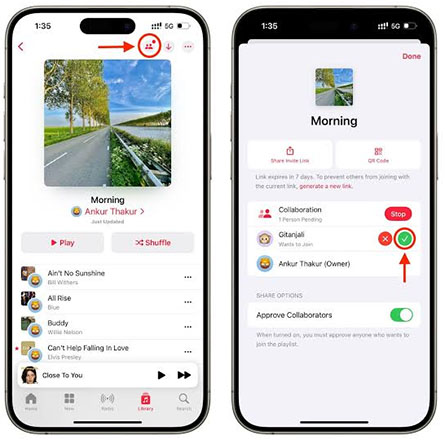
Then ask the affected participant to open the invitation again and check whether they can join and edit the playlist.
Way 2. Check Your Internet Connection
Apple Music Collaborative Playlists rely on an internet connection to send invitations, sync songs, and update changes made by participants. If your Wi-Fi or cellular connection is unstable, collaboration may stop working properly.
- Step 1. Open Safari or another online app to check whether your internet connection is working.
- Step 2. Switch between Wi-Fi and cellular data to see whether the problem is network-specific.
- Step 3. If you're using Wi-Fi, restart your router and reconnect your iPhone.
- Step 4. Open Apple Music again and check whether the collaborative playlist updates normally.
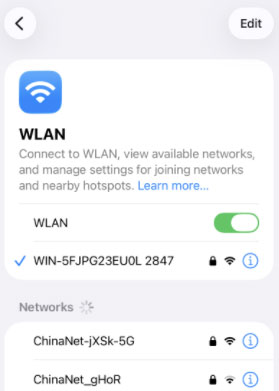
You can also use a speed-testing service if you suspect that your connection is unusually slow.
Way 3. Relaunch the Music App
A temporary Music app glitch may prevent a collaborative playlist from loading or syncing correctly. Closing and reopening the app can refresh its connection and clear minor temporary errors.
- Step 1. Swipe up from the bottom of the screen and pause to open the App Switcher. On an iPhone with a Home button, double-click the Home button.
- Step 2. Find the Music app.
- Step 3. Swipe up on the Music app preview to close it.
- Step 4. Reopen Music and check the collaborative playlist again.

Way 4. Restart or Force Restart Your iPhone
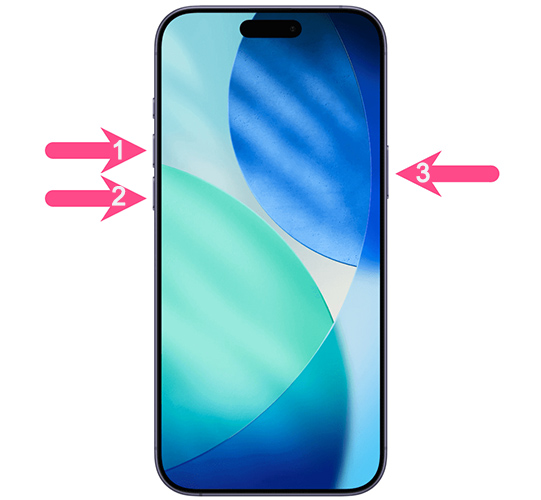
If relaunching Apple Music doesn't help, restart your iPhone. Simply press Volume Up/Down button and the Side button, drag the slider to power off, then wait for a while, press the Side button to power on your iPhone. A restart can clear temporary system issues that may interfere with Apple Music.
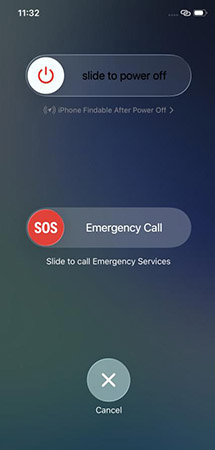
If your iPhone is unresponsive or a normal restart doesn't solve the problem, you can try a force restart.
For most newer iPhone models:
- Step 1. Press and quickly release the Volume Up button.
- Step 2. Press and quickly release the Volume Down button.
- Step 3. Press and hold the Side button.
- Step 4. Release the Side button when the Apple logo appears.
Way 5. Leave and Rejoin the Collaborative Playlist
If only one participant is having trouble while everyone else can use the playlist normally, leaving and rejoining the collaboration may refresh that user's access.
- Step 1. Open Music and select the collaborative playlist.
- Step 2. Tap the Manage Collaboration button.
- Step 3. Tap Leave to remove yourself from the collaborative playlist.
- Step 4. Ask the playlist owner to send you a new invitation link if necessary.
- Step 5. Open the invitation and tap Join Playlist or Request to Join.

Way 6. Update iOS and Check Sync Library
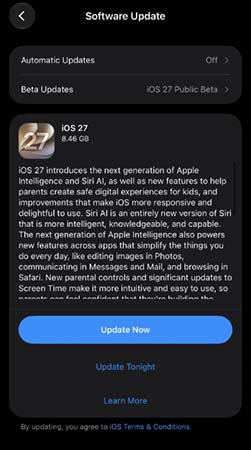
Apple recommends using the latest available version of iOS for Apple Music collaboration. An outdated system may contain bugs or compatibility issues that have already been addressed in a newer update.
First, go to Settings > General > Software Update, select the Update Now button, and install any available iOS update.
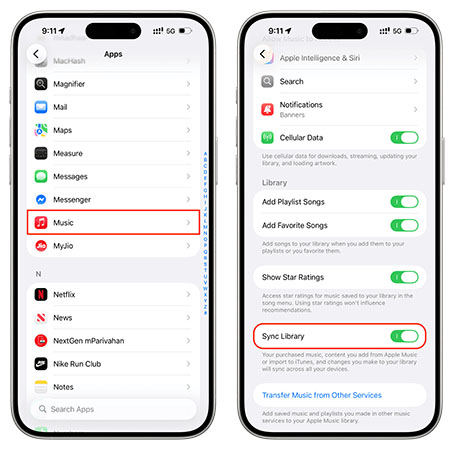
You should also check Sync Library:
- Step 1. Open Settings on your iPhone.
- Step 2. Go to Apps > Music.
- Step 3. Make sure Sync Library is turned on.
- Step 4. Return to Apple Music and allow some time for your library to sync before checking the collaborative playlist again.
Way 7. Reset Network Settings
If Apple Music still cannot connect or sync properly after you have tested different networks, resetting your iPhone's network settings may resolve incorrect network configurations.
 Note
Note
This does not erase your photos, apps, or other personal files. However, it removes saved Wi-Fi networks and passwords as well as certain cellular, VPN, and APN settings.
- Step 1. Open Settings and tap General.
- Step 2. Select Transfer or Reset iPhone > Reset.
- Step 3. Tap Reset Network Settings.
- Step 4. Enter your iPhone passcode if prompted and confirm the reset.

After your iPhone restarts, reconnect to Wi-Fi and check Apple Music again.
Way 8. Repair iOS with TunesKit iOS System Recovery
If Apple Music Collaborative Playlists are still not working after you have tried the basic troubleshooting methods above, an underlying iOS system issue may be involved. In this situation, you can try an iOS system repair utility such as TunesKit iOS System Recovery.
TunesKit iOS System Recovery is designed to repair various iOS system problems, including new iPhone stuck on install now, boot loops, black screens, and other software-related issues. Its Standard Repair mode is designed to repair iOS without erasing user data.
Fix Apple Music Collaborative Playlist Issues
Repair underlying iOS system glitches that may cause Apple Music Collaborative Playlists to stop working—without erasing your data in Standard Repair mode.
 600,000+ Downloads
Let's see the step-by-step guide to fix Apple Music collaborative playlist not working via TunesKit iOS System Recovery.
Step 1. Connect your iPhone to computer
Obtain this tool on your Mac or Windows, then launch it. Attach iPhone to PC using a USB data cable. Select iOS System Repair on the main interface. Click Start button to proceed to the next step.

Step 2. Select a repair mode
Select the Standard Repair option to initiate the repair procedure, this repair mode can fix the most common iOS system issues without data loss. The other repair mode, Deep Repair, fixes deeper iOS system issues but erases all data.

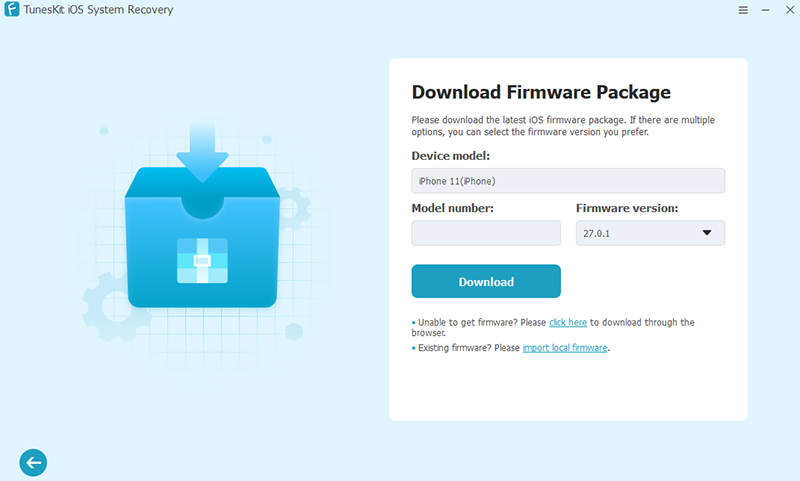
Step 3. Download the matching firmware package
This software will automatically recognize your iPhone model, iOS version. To obtain the firmware package for your iPhone, simply click on the Download button.
Step 4. Fix Apple Music collaborative playlists not working
Click the Start Standard Repair button after the firmware package download is complete. Please remember that you can't disconnect your iPhone from the computer during this process. After the repair is complete, the software screen will show a reminder that the repair is complete, click the Finish button. At this point. Your iPhone will also restart. Then check if Apple Music collaborative playlists not working has been resolved.

FAQs About Apple Music Collaborative Playlist
-
Can I invite non-Apple Music users to collaborate on a playlist?
No. To join and edit an Apple Music Collaborative Playlist, participants need an active Apple Music subscription. Once they join, they can add, remove, and reorder songs and react to tracks with emojis.
-
Can I download a Collaborative Playlist for offline listening?
Yes. If you have an Apple Music subscription, you can download songs from a Collaborative Playlist to your device for offline listening, just like other Apple Music playlists.
-
What happens if someone deletes a Collaborative Playlist?
If a participant leaves or removes the playlist from their own library, it does not delete the playlist for everyone else. If the playlist owner deletes the Collaborative Playlist, the collaboration ends. However, the playlist can remain in the other participants’ libraries, although it will no longer function as an active collaborative playlist.
Conclusion
Apple Music Collaborative Playlists make it easy to build and manage playlists with friends, but issues such as failed invitations, syncing errors, or problems joining a playlist can sometimes occur. In most cases, checking your Apple Music subscription, internet connection, collaboration settings, and iOS version can help resolve the problem.
If the issue persists and appears to be caused by an underlying iOS system glitch, TunesKit iOS System Recovery can be an additional troubleshooting option. Its Standard Repair mode is designed to fix various iOS system issues without erasing your data.



