


How to Fix Apple Account Missing Age Information Error?
Seeing "This setting cannot be changed because your Apple Account is missing age information" when trying to change Allow Apps to Request to Track on your iPhone or iPad? The message can appear even when a birthday is already associated with your Apple Account. It may be related to your account information, age restrictions, Family Sharing settings, or a temporary iOS or account issue. This guide explains why the Apple Account missing age information error occurs and walks you through practical ways to fix it.
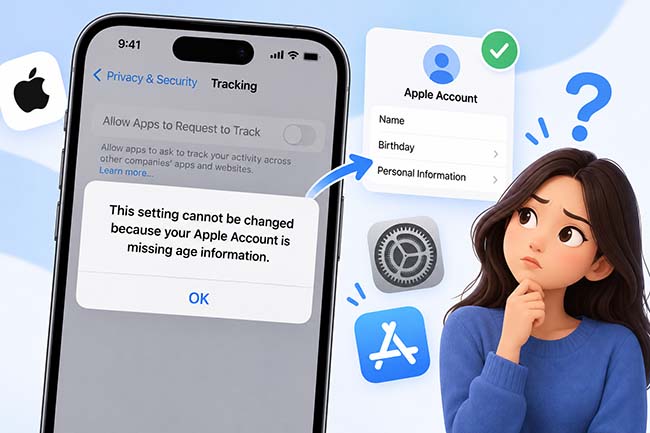
- Why Is My Apple Account Missing Age Information?
-
How to Fix Apple Account Missing Age Information Error
- Fix 1. Check and Update Your Birthday in Apple Account
- Fix 2. Check Whether Your Apple Account Can Enable App Tracking
- Fix 3. Wait If Your Apple Account Was Recently Created
- Fix 4. Check Family Sharing and Child Account Restrictions
- Fix 5. Sign Out and Back Into Media & Purchases
- Fix 6. Restart or Force Restart Your iPhone
- Fix 7. Update iOS
- Fix 8. Repair Potential iOS Issues with TunesKit iOS System Recovery HOT
- FAQs About Apple Account Missing Age Information
- Conclusion
Why Is My Apple Account Missing Age Information?
If your iPhone says "your Apple Account is missing age information," it does not always mean that no birthday is saved to your account. The message may also appear when iOS cannot verify your age for a feature with age-based restrictions. Common causes include:
- 01 Birthday Information Is Missing or Incorrect: Your Apple Account uses your birthday to determine your age and eligibility for certain Apple features. If the birthday information is missing, incomplete, or incorrect, iOS may prevent you from changing age-restricted settings.
- 02 Your Account Does Not Meet the Age Requirement: Some Apple features are restricted based on age. For example, the Allow Apps to Request to Track option may be unavailable for child accounts or users who do not meet Apple's applicable age requirements.
- 03 Family Sharing or Child Account Restrictions: If your Apple Account is part of a Family Sharing group and is set up as a child or teen account, certain privacy and tracking settings may be restricted automatically based on the age associated with the account.
- 04 Apple Account Age Information Is Not Syncing Correctly: Your birthday may already appear correctly in your Apple Account, but your iPhone or Apple's account services may not immediately recognize the updated information. This can result in the Apple Account missing age information message even when a birthday is visible in your account settings.
- 05 Temporary iOS or Apple Account Issue: A temporary iOS, account verification, or synchronization issue may prevent the device from retrieving your age information correctly. This is especially relevant if your birthday is correct but the error suddenly appears.
- 06 Age-Based Service Eligibility: Apple uses the birthday associated with your Apple Account to determine access to certain services and privacy features. If iOS cannot verify your age, the related setting may remain unavailable until the account information can be verified.
How to Fix Apple Account Missing Age Information Error
When you see "This setting cannot be changed because your Apple Account is missing age information," start by checking the birthday associated with your Apple Account. If the birthday is already correct, the issue may be related to age restrictions, Family Sharing, account eligibility, synchronization, or a temporary iOS problem. Try the following solutions.
Fix 1. Check and Update Your Birthday in Apple Account
Since the error specifically refers to missing age information, checking your birthday should be the first step. Apple uses the birthday associated with your Apple Account to provide age-appropriate features and determine eligibility for certain services and settings.
- Step 1. Open Settings on your iPhone and tap your name at the top.
- Step 2. Tap Personal Information.
- Step 3. Tap Date of birth and check whether the date is correct.
- Step 4. If necessary, update your birthday and save the changes.
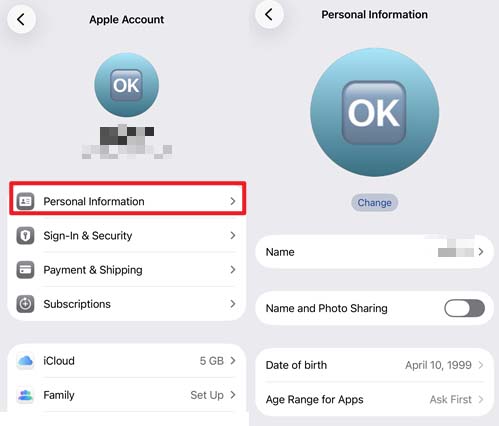
You can also update your birthday at account.apple.com by signing in and selecting Personal Information > Birthday.
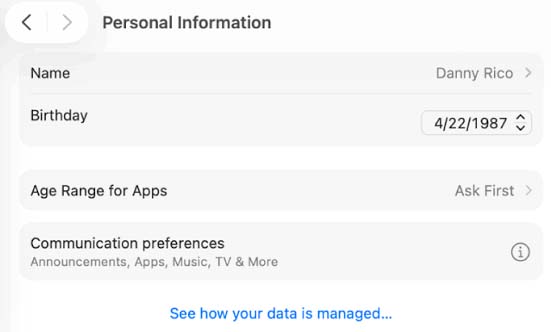
If your birthday is already correct, continue with the next method instead of repeatedly changing it.
Fix 2. Check Whether Your Apple Account Can Enable App Tracking
If the error appears when you try to enable Allow Apps to Request to Track, your birthday may not actually be missing. Apple restricts this setting under certain account and device conditions.
According to Apple, Allow Apps to Request to Track may be unavailable when:
- Your Apple Account is a child account or you are under 18 by birth year.
- Your Apple Account is managed by a school or business.
- Your device is managed and uses a configuration profile that restricts tracking.
- Your Apple Account was created within the last three days.
To check the Tracking setting:
- Step 1. Open Settings on your iPhone.
- Step 2. Go to Privacy & Security > Tracking.
- Step 3. Check whether Allow Apps to Request to Track can be enabled.
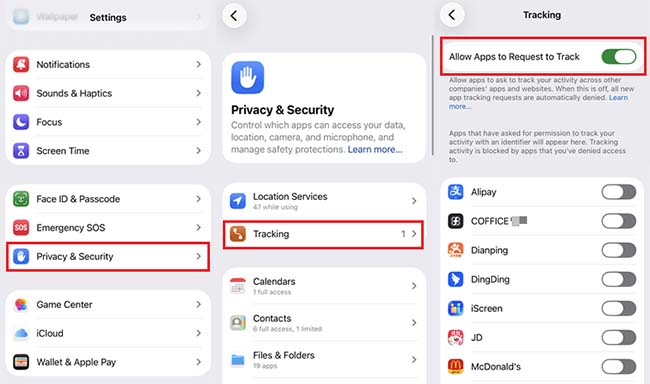
Fix 3. Wait If Your Apple Account Was Recently Created
Apple states that Allow Apps to Request to Track can remain unavailable when an Apple Account was created within the previous three days. If you have just created the account, the disabled setting or age-related message may be temporary.
In this situation, avoid repeatedly changing your birthday or resetting the iPhone. Wait until at least three days have passed since the Apple Account was created, then return to Settings > Privacy & Security > Tracking and check the option again.
Fix 4. Check Family Sharing and Child Account Restrictions
Family Sharing can also affect age-related settings. If the Apple Account belongs to a child or teen, Apple may apply restrictions based on the birthday associated with that account.
- Step 1. Open Settings and tap Family below your Apple Account name. Depending on your iOS version, you may need to tap your name > Family.
- Step 2. Select the relevant family member.
- Step 3. Review the account and parental control settings associated with that family member.
- Step 4. If the birthday is incorrect, check the birthday through the affected Apple Account's Personal Information settings.
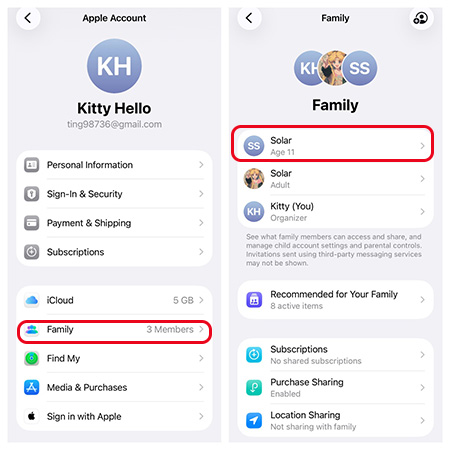
Keep in mind that changing the birthday of a child account can be subject to additional Apple requirements. Do not enter a false birthday simply to bypass an age restriction.
Fix 5. Sign Out and Back Into Media & Purchases
If your birthday is correct and your account meets the age requirements, refreshing the Media & Purchases session may help when account information is not syncing correctly.
This is different from completely signing out of your Apple Account , so you do not need to remove the entire account from your iPhone.
- Step 1. Open Settings and tap your name.
- Step 2. Tap Media & Purchases.
- Step 3. Tap Sign Out, then confirm the action.
- Step 4. Tap Media & Purchases again and sign back in with your Apple Account.
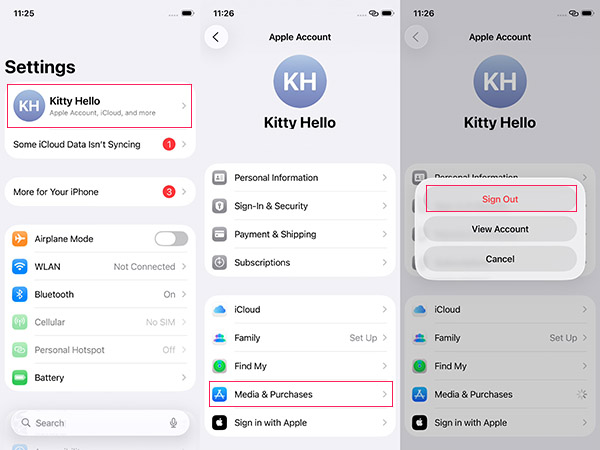
After signing back in, return to Settings > Privacy & Security > Tracking and check whether the error has disappeared.
Fix 6. Restart or Force Restart Your iPhone
If your account information is correct but iOS still displays the old age status, restarting the iPhone can clear temporary system or account-sync problems.
For an iPhone with Face ID:
- Step 1. Press and hold the Side button and either Volume button until the power-off slider appears.
- Step 2. Drag slide to power off and wait for the iPhone to turn off completely.
- Step 3. Press and hold the Side button until the Apple logo appears.

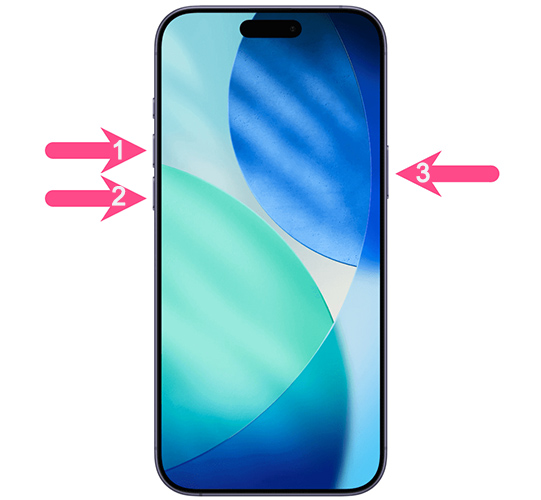
If a normal restart does not help, try a force restart on iPhone 8 or later:
- Step 1. Quickly press and release the Volume Up button.
- Step 2. Quickly press and release the Volume Down button.
- Step 3. Press and hold the Side button until the Apple logo appears.
Fix 7. Update iOS
An outdated iOS version can contain system issues that have already been addressed in a later update. If the account information is correct but the error persists, install the latest iOS version available for your iPhone.
- Step 1. Connect your iPhone to Wi-Fi and make sure it has sufficient battery power.
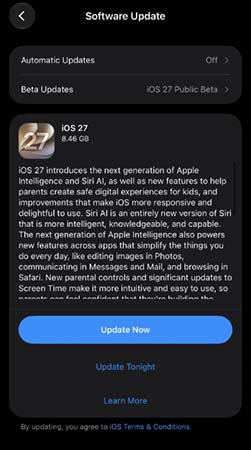
- Step 2. Open Settings > General > Software Update.
- Step 3. If an update is available, tap Update Now.
- Step 4. Follow the onscreen instructions to complete the update.
Fix 8. Repair Potential iOS Issues with TunesKit iOS System Recovery
If your birthday is correct, your Apple Account meets Apple's requirements for app tracking, and the error remains after restarting and updating your iPhone, the problem may involve an iOS system issue. Before factory-resetting your device, you can use TunesKit iOS System Recovery to troubleshoot potential iOS problems.
Its Standard Repair mode is designed to repair 150+ iOS system issues while preserving user data. For instance, it can fix iPhone stuck on update requested, iPhone stuck on signing into iCloud, and iPhone stuck in guided access, etc. Only 4 steps, you can fix this issue caused by iOS glitches within seconds.
Fix Apple Account Age Information Errors
Repair iOS system issues behind the Apple Account missing age information error with TunesKit iOS System Recovery, while keeping your data intact.
 600,000+ Downloads
Now follow the step-by-step guide to fix the Apple Account missing age information using TunesKit iOS System Recovery.
Step 1. Connect iPhone to PC
Acquire this software on your PC, then link your iPhone to your PC via a reliable USB data cable. Select iOS System Repair on the main screen. On the next page, various device issues are on the list. If your iOS error isn't on the list, no worries, just click the Start button to move to the next step.

Step 2. Choose Standard Repair
Two repair modes will appear on the screen for you to choose from. Standard Repair fixes your iOS device with data preserved, and Deep Repair fixes more complex iOS errors, but erases all data on your device. It is recommended that you choose Standard Repair.

Step 3. Obtain the Firmware Package
This software will automatically detect your device model and iOS version and you just need to select the appropriate firmware version from the menu and click on the Download button to download the firmware package.

Step 4. Start to Repair
Click the Start Standard Repair button when successfully downloaded the firmware package. TunesKit will automatically start fixing all the iOS glitches on your device. After the repair is complete, your iPhone will restart. Don't worry, there is no data loss from this process. You can then check if the problem has been resolved.

FAQs About Apple Account Missing Age Information
-
Why can't I turn on Allow Apps to Request to Track?
Apple may disable Allow Apps to Request to Track for users under 18 by birth year, child accounts, certain managed accounts or devices, and Apple Accounts created within the previous three days.
-
Can I change my Apple Account birthday to enable tracking?
You can correct an inaccurate birthday, but you should use your actual date of birth. Changing it to a false age to bypass an age-based restriction can create account-related problems and does not guarantee that Tracking will become available.
-
Will resetting my iPhone fix the Apple Account missing age information error?
A factory reset generally will not resolve an account-level age restriction because birthday and eligibility information is associated with your Apple Account. If the account information is correct and the problem is caused by iOS, troubleshooting or repairing the system should be considered before erasing the device.
-
Can a child Apple Account enable App Tracking Transparency?
Apple restricts Allow Apps to Request to Track for child accounts and users under 18 by birth year. In these cases, the unavailable Tracking option can be expected behavior rather than an iPhone malfunction.
Conclusion
If you see the "Your Apple Account is missing age information" error, check your birthday and account eligibility first, then restart or update your iPhone if needed. If the error persists despite correct account information, TunesKit iOS System Recovery can help repair potential iOS system issues without data loss.



