


iPad Keeps Shutting Off? 8 Ways to Fix It
"My iPad keeps shutting off every few seconds and turning back on. Restarting it didn't help. What should I do?" – Susan from Reddit
If your iPad keeps shutting off unexpectedly, you're not alone. This issue can be caused by iPadOS glitches, low storage, problematic apps, battery problems, overheating, or hardware damage. In some cases, the iPad may also restart by itself or get stuck in a shutdown loop. This guide explains the most common causes and walks you through 8 practical ways to fix an iPad that keeps turning off.

- Why Does My iPad Keep Shutting Off?
-
How to Fix an iPad That Keeps Shutting Off
- Solution 1. Force Restart Your iPad
- Solution 2. Free Up Storage on Your iPad
- Solution 3. Remove Problematic Apps
- Solution 4. Fix iPad Keeps Shutting Off with TunesKit iOS System Recovery HOT
- Solution 5. Check Battery, Charging, and Temperature
- Solution 6. Update iPadOS
- Solution 7. Reset All Settings
- Solution 8. Update or Restore the iPad in Recovery Mode
- Summary
Why Does My iPad Keep Shutting Off?
If your iPad keeps shutting off, the issue may be related to software, storage, battery, temperature, or hardware problems. Common causes include:
- 01 Insufficient storage: When your iPad has very little free space, iPadOS may become unstable and cause unexpected shutdowns or restarts.
- 02 iPadOS bugs or glitches: Temporary system errors or problems after an update can make the iPad turn off by itself.
- 03 Problematic apps: A buggy or incompatible app may crash repeatedly and affect overall system stability.
- 04 Overheating: If the iPad becomes too hot, it may shut down temporarily to protect its internal components.
- 05 Aging or damaged battery: A worn-out battery may not provide stable power, causing the iPad to shut off even when some battery percentage remains.
- 06 Hardware problems: Damage to the battery, logic board, charging components, or other internal parts can also lead to repeated shutdowns.
How to Fix an iPad That Keeps Shutting Off
If your iPad keeps shutting off, start with the easiest fixes first. Simple actions like force restarting the device, freeing up storage, or removing a problematic app may solve the issue without affecting your data. If these basic fixes do not work, you can move on to system repair, software updates, settings resets, and finally a full restore.
Solution 1. Force Restart Your iPad
A temporary iPadOS crash or background process may cause your iPad to shut down or restart unexpectedly. A force restart refreshes the system without deleting your apps, photos, or other data, so it should be one of the first fixes to try.
For iPad without a Home button:
- Step 1. Quickly press and release the Volume button closest to the Top button.
- Step 2. Quickly press and release the other Volume button.
- Step 3. Press and hold the Top button until the Apple logo appears.

For iPad with a Home button:
- Step 1. Press and hold the Home and Top buttons at the same time.
- Step 2. Release both buttons when the Apple logo appears.

Solution 2. Free Up Storage on Your iPad
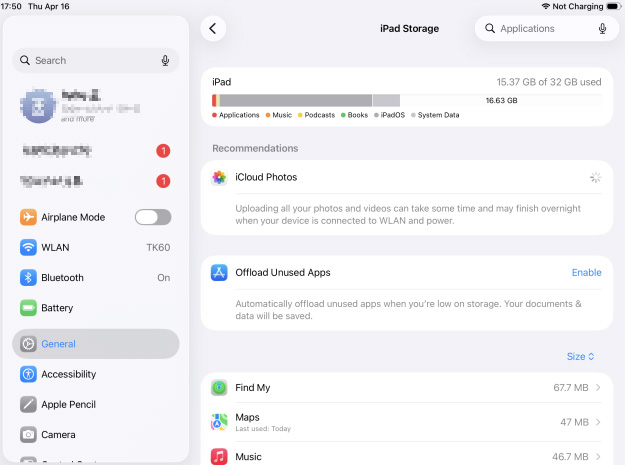
If your iPad is almost out of storage, the system may become unstable and apps may not work properly. Freeing up space can improve system performance and help prevent unexpected shutdowns.
- Step 1. Open Settings app on your iPad.
- Step 2. Go to General > iPad Storage.
- Step 3. Check how much free storage remains.
- Step 4. Delete unnecessary videos, downloads, or apps. You can also use Offload App to remove an app while keeping its documents and data.
Restart your iPad afterward and check whether it still shuts down by itself.
Solution 3. Remove Problematic Apps
If your iPad keeps shutting off when using a certain app, that app may be outdated, corrupted, or incompatible with your current iPadOS version. Removing it can help determine whether it is causing the problem.
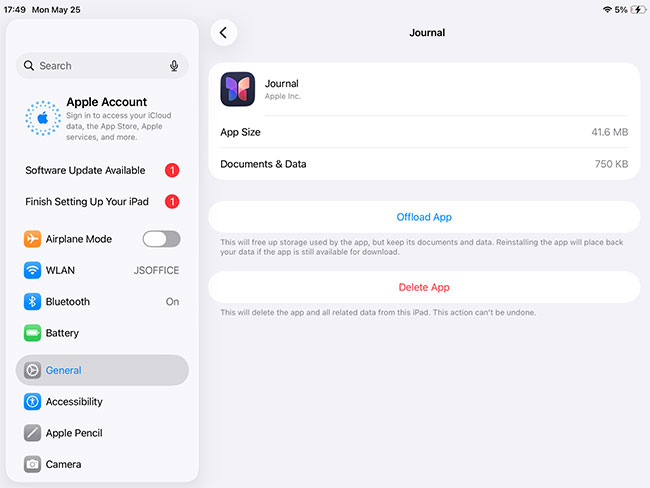
- Step 1. Go to Settings > General > iPad Storage.
- Step 2. Select the app that seems to trigger the shutdown.
- Step 3. Tap Delete App and confirm.
- Step 4. Restart your iPad and use it for a while to see whether the issue returns.
If the iPad works normally afterward, you can reinstall the latest version of the app from the App Store.
Solution 4. Fix iPad Keeps Shutting Off with TunesKit iOS System Recovery
A professional and reliable iOS recovery program can fix this problem easily. It is designed to repair iOS system problems. TunesKit iOS System Recovery is a leading one of them.
This software can fix iPad won't turn on, iPhone stuck on black screen, disabled screen, and other 150+ iOS system issues. Once you own it, you do not have to worry about any iOS problems on your iPhone, iPod touch, and iPad. You can select from two modes: Standard Repair and Deep Repair. The first one can fix common issues and will not cause any data loss on your iOS device. You can use Deep Repair which is more powerful, to fix other serious problems.
Fix iPad Keeps Shutting Off
Repair iPadOS system issues causing random shutdowns with TunesKit iOS System Recovery while keeping your data intact in Standard Repair mode.
 600,000+ Downloads
3 steps are listed below about how to use TunesKit to fix iPad keeps turning off and back on. Let's start it by downloading and installing TunesKit for free.
Step 1. Connect Your iPad
Install and launch TunesKit iOS System Recovery on your computer. Connect your iPad with a USB cable, choose iOS System Repair, and click Start.

Step 2. Choose Standard Repair
Select Standard Repair and follow the onscreen instructions. This mode is intended to repair common iPadOS issues without erasing your current data.

Step 3. Download the Firmware
Check the detected device information and click Download to get the matching firmware package.

Step 4. Repair Your iPad
After the firmware is downloaded, click the Start Standard Repair button. Keep the iPad connected until the repair process is complete.

Solution 5. Check Battery, Charging, and Temperature
If your iPad shuts off while the battery percentage is still high, or the problem happens more often while charging or playing games, power or temperature issues may be involved.
Try the following checks:
- Charge the iPad with a reliable cable and power adapter.
- Check the charging port for dust, debris, or visible damage.
- Remove the case temporarily if the iPad becomes unusually hot.
- Stop demanding tasks such as gaming or video editing and allow the device to cool down.
- Pay attention to whether the iPad repeatedly shuts off at the same battery percentage.

If the problem continues after software troubleshooting, an aging battery or other internal component may need professional inspection.
Solution 6. Update iPadOS
Software bugs can also cause unexpected shutdowns and restarts. Updating iPadOS installs the latest bug fixes and system improvements, so it is worth checking for an available update. Before updating, make sure your iPad has enough battery power and available storage.
- Step 1. Open Settings app on your iPad.
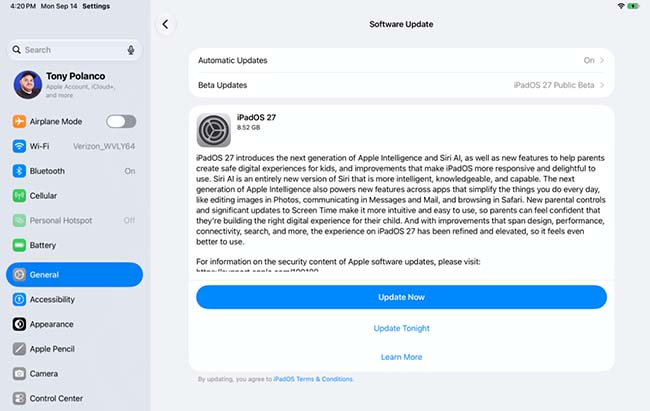
- Step 2. Go to General > Software Update.
- Step 3. Wait for the iPad to check for updates.
- Step 4. If an update is available, tap the Update Now button and follow the onscreen instructions.
Solution 7. Reset All Settings
If the issue started after changing system settings or installing updates, incorrect settings may be contributing to the shutdown problem. Reset All Settings restores system settings to their defaults without deleting your photos, apps, or documents. However, you may need to reconfigure Wi-Fi networks, privacy settings, keyboard preferences, and other personalized settings afterward.
- Step 1. Open Settings > General on your iPad.
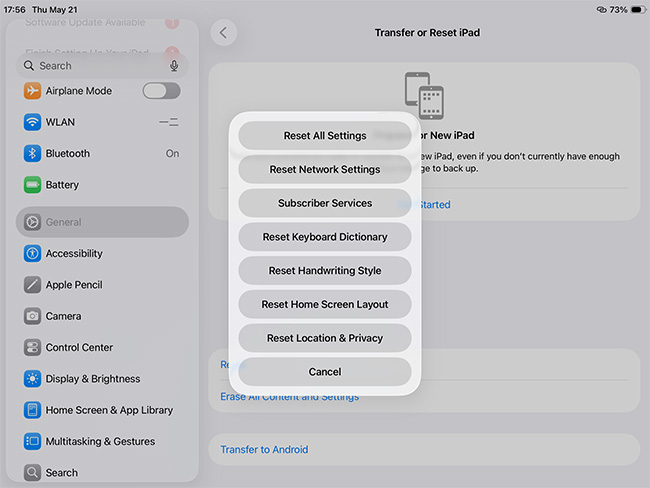
- Step 2. Tap Transfer or Reset iPad.
- Step 3. Choose Reset > Reset All Settings.
- Step 4. Enter your passcode and confirm.
Solution 8. Update or Restore the iPad in Recovery Mode
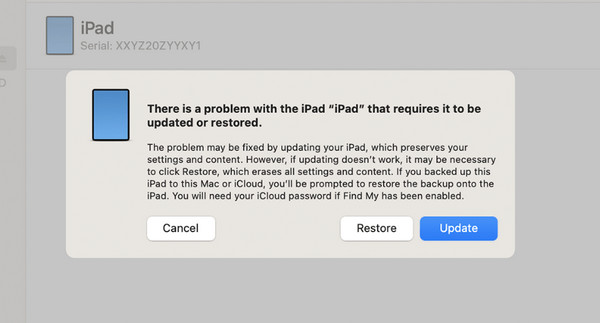
If your iPad keeps shutting off after trying all the solutions above, you can use recovery mode to reinstall iPadOS. It is best to try Update first because it reinstalls the system without erasing your data. If updating does not work, you can then choose Restore as the final option. You can restore an iPad with Finder on Mac, the Apple Devices app on Windows, or iTunes on older supported computers.
- Step 1. Connect the iPad to your computer with a compatible USB cable.
- Step 2. Put the iPad into recovery mode.
- For an iPad without a Home button, quickly press and release the Volume button closest to the Top button, quickly press and release the other Volume button, and then hold the Top button until the recovery mode screen appears.
- For an iPad with a Home button, quickly press and hold the Home and Top/Side buttons until the recovery mode screen appears.
Step 3. Open Finder, Apple Devices, or iTunes and select your iPad.
Step 4. When prompted to Update or Restore, choose Update first. Your computer will try to reinstall iPadOS without erasing your data.
Step 5. If the update fails or your iPad still keeps shutting off afterward, repeat the recovery mode process and choose Restore. Keep in mind that restoring will erase the data and settings on your iPad.
After the process is complete, check whether the unexpected shutdowns have stopped. If the problem remains even after a full restore, the battery or another hardware component may need inspection.
Summary
If your iPad keeps shutting off, start with simple fixes like force restarting, freeing up storage, removing problematic apps, or updating iPadOS. For system-related issues, TunesKit iOS System Recovery can repair iPadOS with Standard Repair without erasing data. Use recovery mode and Restore only as a last resort, since restoring will erase the iPad.



