


How to Stop Sharing Location without Notifying iMessage 2026
iMessage location sharing lets you share your real-time location with friends and family, making it easy to stay connected and coordinate plans. However, there are times when you may want to stop sharing your location quietly - without notifying the other person on iMessage.
Whether it's for privacy, personal space, or planning a surprise, this guide will show you how to stop sharing location without notifying iMessage on your iPhone using simple, effective methods.

- Part 1. What is iMessage Location Sharing and When Do We Need to Stop It?
- Part 2. Will Other Person Know When I Stop iMessage Location Sharing?
- Part 3. How to Stop Sharing Location without Notifying iMessage
- Method 1. Hide Real Location via TunesKit Location ChangerHOT
- Method 2. Stop Sharing Location in Find My App
- Method 3. Disable Location Services for "Find My"
- Method 4. Turn On Airplane Mode
- Method 5. Use Another Apple Device as Your Location
- Method 6. Turn Off Precise Location
- Method 7. Sign Out of iCloud [Not Recommended]
- Part 4. FAQs about Stopping iMessage Location Sharing
- Part 5. Conclusion
Part 1. What is iMessage Location Sharing and When Do We Need to Stop It?
Before learning how to stop sharing location without notifying iMessage, let's first understand how iMessage location sharing works. Simply put, iMessage location sharing allows you to share your real-time location through the Find My app or an iMessage conversation. You can share it indefinitely, for a set time, or until you turn it off manually. And, you can choose to share your location to all people or only to the people you select.
However, this feature is not always convenient for us in some time. There are several common reasons why we might want to stop sharing our location. Let's take a look.
- Privacy Concerns: You may not want certain people to track your movements at all times.
- Personal Boundaries: You might feel uncomfortable sharing your location continuously.
- Surprises or Special Events: If you're planning a surprise visit or event, stopping location sharing discreetly can help keep it secret.
- Battery or Performance Issues: Constant location tracking can drain your battery.
- Avoiding Awkward Situations: Sometimes, you just don't want others to know where you are.
Part 2. When You Stop Sharing Location Does It Notify The Other Person iMessage?
So, will other person know when you stop iMessage location sharing? The short answer is yes - sometimes. It depends on how you turn off iMessage location sharing.
If you stop sharing your location directly through iMessage or the Find My app with a specific person, they will receive a notification letting them know you've stopped sharing. But if you stop location sharing for all people, they'll not receive such ntification.
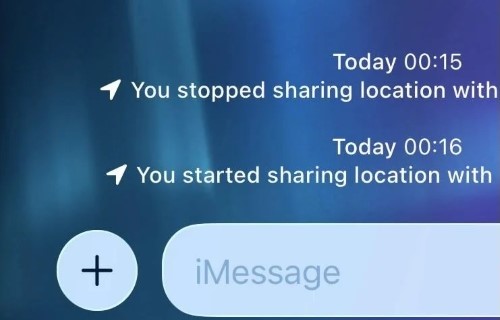
When Does iMessage Notify The Other Person?
- If you go to Find My > People > select a person > tap Stop Sharing My Location, they will be notified.
- If you go to an iMessage conversation, tap their name, and stop sharing location, they will also get a notification.
That said, not every method triggers a notification. If you're looking to stop sharing location without notifying iMessage, there are several discreet alternatives you can use. In the next section, we'll cover 7 effective ways to stop iMessage location sharing on your iPhone - without alerting the other person. Keep reading to find the method that works best for you.
Part 3. How to Stop Sharing Location without Notifying iMessage
In this part, you'll learn 7 ways to stop sharing location without notifying iMessage.
| Method | Notification Sent? | What They See on Map | Suspicion Level |
|---|---|---|---|
| 1. TunesKit Location Changer | NO | Fake location you set | Zero |
| 2. Stop Sharing Location in Find My App | NO | Location Not Available | High |
| 3. Disable Location Services for "Find My" | NO | Location Not Available | High |
| 4. Turn On Airplane Mode | NO | Location Not Available | High |
| 5. Use Another Apple Device | NO | Location of second device | Low |
| 6. Turn Off Precise Location | NO | Approximate location | Low |
| 7. Sign Out of iCloud | NO | Location Not Available | High |
Method 1. Hide Real Location via TunesKit Location Changer
 What The Other Person Will See: Your location still appears on the live map, but it follows a fake route or stays at a spot you manually set.
 If you want to stop sharing location without notifying iMessage and avoid suspicion completely, TunesKit Location Changer is the most reliable solution.
Most built-in iOS methods don't send a notification, but they often display a "Location Not Available" message - making it obvious that you've stopped sharing. TunesKit Location Changer works differently. It changes or fakes your GPS location, so your location continues to appear normally on the map, just not your real one. This means:
- No iMessage notification
- No "Location Not Available" alerts
- No awkward questions
It's a truly discreet way to stop sharing location without others knowing.
Apart from iMessage, this location changer is also useful for other location-based apps like Find My, WhatsApp, Pokemon, and so on on your phone.
Easily Change DoorDash Location with TunesKit Location Changer
Connect your phone, set a virtual location, and discover food options from other neighborhoods or cities instantly.
 600,000+ Downloads
 Why Users Love TunesKit Location Changer:
- Change location on iOS 26 in one click
- Simulates GPS movement with customizable routes and adjustable speeds
- Compatible with Windows and macOS
- Works with a wide range of iOS & Android system version
- Compatible with location-based apps like Pokémon GO, Mobile Hunter, Life360
Let's see how to stop sharing location without notifying iMessage via TunesKit Location Changer.
Step 1 Connect iPhone to PC
Open TunesKit Location Changer on your computer. Click the Start button to start using this tool.
Follow the prompts to connect your iPhone to your computer. If the connection is down, click the Next button to continue. Follow the instructions on the PC screen to turn on Developer Mode on your iPhone.

Step 2 Change location to a new location
Enter your target location address on the search bar. Confirm the new location and then click the Start Modifying button to change your iPhone location to this new one.

Now your iMessage location is changed to a new location. If your contacts check your location, they will see you are in the new location but don’t know it is a fake location.
Method 2. Stop Sharing Location in Find My App
What The Other Person Will See: Your profile disappears from the shared map in iMessage, but if others check your location, they'll be notified "Location Not Available".If you want to stop location sharing in Find My without others knowing, this method would be your choice.
Step 1. Open the Find My app.
Step 2. Tap the Me tab.
Step 3. Toggle off Share My Location.

Pros:- Prevents live location sharing.
- No immediate notification is sent.
 Cons:
Cons:- If someone actively checks your location, they'll notice it's unavailable.
Method 3. Disable Location Services for "Find My"
What The Other Person Will See: Your profile disappears from the shared map in iMessage, but if others check your location, they'll be notified "Location Not Available".You can prevent your iPhone from sharing location updates by turning off Location Services.
Step 1. Open Settings on your iPhone.
Step 2. Go to Privacy & Security > Location Services.
Step 3. Scroll down and tap Find My.
Step 4. Select Never to stop sharing location data with Apple.

Pros:- Works in the background.
- No notification is sent.
Cons:- Disables Find My iPhone, making it harder to locate your device if lost.
- Other apps might not access your location.
- Someone who checks your location will get the "Location Not Available" prompt.
Method 4. Turn On Airplane Mode
What The Other Person Will See: Your profile disappears from the shared map in iMessage, but if others check your location, they'll be notified "Location Not Available".Airplane Mode disables all wireless connections, including location updates. This is the easiest way to stop sharing location without notifying iMessage.
Step 1. Swipe down from the top-right corner (iPhone X and later) or swipe up from the bottom (iPhone 8 and earlier).
Step 2. Tap the Airplane Mode icon to enable it.
Step 3. While Airplane Mode is on, your location won't update in Find My.

Pros:- Completely stops location tracking.
- No notifications are sent.
Cons:- Disables calls, texts, and internet.
- Works only while Airplane Mode is enabled.
- "Location Not Available" will be shown if others check your location.
Method 5. Use Another Apple Device as Your Location
What The Other Person Will See: Your profile appears at the shared map on iMessage with your second Apple device.If you have multiple Apple devices (like an iPad or a secondary iPhone), you can set one as your location source instead.
Step 1. Keep your secondary device in a location where you want it to appear.
Step 2. Open the Find My app on that device.
Step 3. Go to the Me tab and select Use This [Device] as My Location.

Pros:- Makes it seem like you're somewhere else instead of stopping sharing.
- No notifications are sent.
Cons:- Requires another Apple device.
Method 6. Turn Off Precise Location
What The Other Person Will See: Your profile appear at the map with an approximate location.This way will tell Find My not to track precise location of your iPhone but an approximate location.
Step 1. Open the Settings app on your iPhone and then select Privacy & Security > Location Services.
Step 2. Tap on the Find My or Messages option.
Step 3. Turn off the Precise Location feature to only determine your approximate location.

Pros:- Prevent precise tracking.
- No immediate notification is sent.
Cons:- Cannot hide location completely.
Method 7. Sign Out of iCloud [Not Recommended]
What The Other Person Will See: Your profile disappears from the shared map in iMessage, but if others check your location, they'll be notified "Location Not Available".Apart from the above methods, signing out of iCloud will also stop sharing your location, but it comes with some drawbacks. Here are the steps on how to sign out of iCloud.
Step 1. Open Settings on your iPhone and tap your Apple ID (your name at the top).
Step 2. Scroll down and tap Sign Out.
Step 3. Enter your Apple ID password if required.
Step 4. Choose whether to keep or remove iCloud data from your device.
Step 5. Confirm and sign out.

Pros:- No direct notification is sent.
- Stops all location sharing immediately.
- Works across all Apple devices linked to that iCloud account.
Cons:- Disables other iCloud features like iMessage sync, iCloud Drive, and backups.
- Removes access to Find My iPhone, which can be a security risk.
- If you sign back in, location sharing may resume automatically.
- People who were tracking your location will see "Location Not Available."
Part 4. FAQs about Stopping iMessage Location Sharing
-
1. Can I pause location sharing temporarily?
Apple doesn't have a built-in "pause" option, but you can temporarily turn off Location Services or use Airplane Mode to stop updates without notifying the other person.
-
2. Will turning off my phone stop sharing my location?
Yes, but only while the phone is off. Once you turn it back on and have an internet connection, location sharing will start working again.
-
3. If I remove someone from Find My, will they get a notification?
No, but if they check their Find My app, they'll see that they no longer have access to your location.
-
4. Can I fake my location instead of stopping sharing?
Yes, if you have multiple Apple devices, you can set another device as your shared location in Find My. If you don't have another Apple device, TunesKit Location Changer will help you fake your iPhone location instead of stopping sharing.
-
5. What does "Location Not Available" mean in Find My?
It usually means: the person turned off their location services; their phone is off or in Airplane Mode; they stopped sharing their location with you.
Part 5. Conclusion
Maintaining control over your location privacy is essential, and Apple provides several ways to share or stop sharing your location. If you ever need to stop sharing location without notifying iMessage, using TunesKit Location Changer would be your best choice. Other methods like disabling Location Services or using another Apple device can also help you achieve this discreetly but you should learn their pros and cons. Always remember to use these methods responsibly.


