


How to Pause/Freeze Your Location on Snapchat?
Snapchat lets you share your life in 10-second bursts and check live location on the Map, but sometimes makes it feel like Big Brother is watching. Want to hit pause on your location without your friends noticing? Maybe you're avoiding someone, or maybe you just want a little more privacy (and mystery) in your life.
Whatever the reason, we've got you covered. In this post, we'll show you how to pause your location on Snapchat safely and easily, so you can stay in control of what others see, without disappearing completely.

Part 1: Can You Freeze Your Location on Snapchat?
Yes, you can - but not with a single "pause" button. Snapchat doesn't offer a built-in option to pause your location, but there are a few smart workarounds.
Here's a quick summary:
The easiest method is Ghost Mode, which hides your real-time location completely. However, turning it on also removes your Bitmoji from the Snap Map, which isn't ideal if you still want to appear active.
If you'd rather keep your Bitmoji visible in one fixed spot, tools like TunesKit Location Changer can help. This powerful app lets you control your phone's GPS location, allowing you to freeze your Snapchat location and keep your Bitmoji parked exactly where you want. It's like teleporting on Snap Map - without anyone noticing.
 Benefits of Pausing Snapchat Location:
- Avoid unwanted tracking – You don't have to share your every move.
- Maintain the Illusion – Stay "at home" even when you’re out.
- Prevent Awkward Moments – A frozen location keeps you off the radar.
- Protect your privacy – Limiting location sharing helps secure your digital footprint.
Part 2: Video Tutorial: How to Pause Your Snapchat Location without Them Knowing?
Want to take a break from sharing your location on Snapchat without alerting your friends? In this quick video tutorial, we'll show you how to pause/change your Snapchat location discreetly.
Part 3: How to Pause/Freeze Snapchat Location [6 Quick Way]
Snapchat uses your phone's real-time location for the Snap Map. If you are unwilling to share your real location with others considering the privacy and security, here's how to pause or freeze your location on Snapchat.
Way 1: Turn On Snapchat Ghost Mode
 What Your Friends Will See: Your Bitmoji disappear from Snap map.
If you want to completely hide your location on Snapchat, the Ghost Mode feature is your go-to option. While it effectively keeps your whereabouts private, it also makes it obvious to others that you've enabled Ghost Mode on the Snap Map.
Here's how to pause your Snapchat location using Ghost Mode:
Step 1: Open Snapchat and tap your profile icon in the top-left corner.
Step 2: Go to Settings and scroll down to Privacy Control.
Step 3: Select My Location and toggle on Ghost Mode.
Step 4: Choose how long you want to stay hidden—select "Until Turned Off" if you want to remain invisible indefinitely.

With Ghost Mode on, your location stays under wraps until you decide otherwise.
Way 2. Pause Snapchat Location via Location Changer
What Your Friends Will See: Your Bitmoji stays frozen in one spot or moves naturally along a route.Ever wished you could magically transport your Bitmoji to a tropical beach while you're actually binge-watching shows on your couch? With TunesKit Location Changer, the ultimate GPS spoofing tool that lets you teleport your Bitmoji to anywhere in the world without leaving your house. Whether you're pranking your friends, maintaining your privacy, or just having a little fun, TunesKit Location Changer is your go-to solution for freezing your Snapchat location like a pro.
Why Users Love TunesKit Location Changer:- Spoof location on iPhone/iPad in one click;
- Simulates GPS movement with custom routes and speeds;
- Works with a wide range of iOS & Android system version
Freeze Snapchat Location Instantly with TunesKit Location Changer
With TunesKit Location Changer, freeze your location, avoid tracking, and keep your Snap Map exactly how you want it - all in a few clicks.
 600,000+ Downloads
Follow these 3 simple steps to pause your Snapchat location using TunesKit Location Changer.
Step 1Connect Your Device
Download the software for your computer (Windows or Mac). Install the program and launch it. Use a USB cable to connect your iPhone or Android device to your computer. Click the Start button on the main screen. Enable Developer Mode on your device.

Step 2Choose Jump Teleport Mode
The map will appear on the TunesKit's interface. You'll see five modes of faking your location in the top right corner, and you can choose Jump Teleport to get started. Simply enter the address or coordinates of where you want your Bitmoji to appear. Alternatively, you can use the map interface to drag and drop the pin to your desired location. Once confirmed, click Start Moving to apply the new location to your device.

Step 3Check Your New Location on Snapchat
Open Snapchat, and your Bitmoji will now appear in the chosen location. If you want your friends to think you're moving, you can choose other modes such as two-spot movement, multi-spot movement, and joystick movement to simulate movement in Snapchat. You can customize the route and speed to simulate movement on Snap Map.

Way 3: Pause Snapchat Location using Airplane Mode
What Your Friends Will See: Your Bitmoji disappear from Snap map.Airplane Mode is your trusty sidekick. It's quick, easy, and doesn't require any tools. While it won't freeze your Bitmoji in one spot forever, it's perfect for those moments when you need to disappear temporarily without raising suspicion.
Here's how to pause Snapchat location using Airplane mode:
For iOS (iPhone & iPad):
Step 1: Open Control Center by swiping down from the top-right corner (or up from the bottom on older models).
Step 2: Tap the Airplane Mode icon (a plane symbol) to turn it on.
Step 3: Alternatively, go to Settings > Toggle on Airplane Mode.

For Android:
Step 1: Swipe down from the top of the screen to open Quick Settings.
Step 2: Tap the Airplane Mode icon to enable it.
Step 3: Or go to Settings > Network & Internet > Toggle on Airplane Mode.

Keep in mind:Once you enable Airplane Mode, you can't use the Mobile Data.
Way 4: Disable Location Permission to Pause Location on Snapchat
What Your Friends Will See: Your Bitmoji disappears from Snap map.To freeze your location without anyone knowing, you can disable your phone's location services. Here are the detailed steps:
For iPhone:
Step 1: Open the Settings app on your iPhone, then scroll down to find the App option, tap it.
Step 2: From the list, tap on Snapchat and select Location at the top.
Step 3: Change the location access to "Never" to stop Snapchat from tracking you.

For Android:
Step 1: Open Settings on your phone.
Step 2: Scroll down and tap Apps or App Management (varies by device).
Step 3: Find and select Snapchat from the list.
Step 4: Tap Permissions > Location.
Step 5: Choose "Don't allow" or "Never" to disable location access.

Keep in mind:This method limits some features, like location-based filters and streaks.
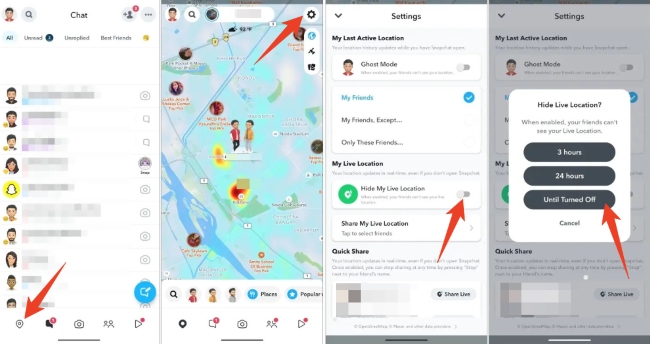
Way 5: Pause Live Location on Snapchat
What Your Friends Will See: Your friends will see your last active location and how long you stayed there.Yes, you can pause your live location on Snapchat so it stops updating as you move. This is ideal if you want to pause your location before heading somewhere new. Here's how pause live location:
Step 1. On Snapchat main interface, tap the Snap Map icon at the bottom. Then tap the Settings icons at the top-right corner.
Step 2. Scroll down and turn on Hide My Live Location toggle.
Step 3. When prompted, choose Until Turned Off option to stop future location updates.
Once enabled, Snapchat will only show your last known location.
Way 6: Disable Background Activity on iOS/Android
What Your Friends Will See: Your last active location and time spent there.To gain more control over when Snapchat updates your location, you can stop it from running in the background. This prevents automatic updates and even helps save battery - just remember to fully close the app.
On iOS devices:
Step 1. Go to Settings > General > Background App Refresh.
Step 2. Scroll down and find the Snapchat app.
Step 3. Switch the toggle off to disable Background App Refresh feature for Snapchat.

On Android devices:
Step 1. Tap Settings > Apps > Snapchat.
Step 2. Scroll down and find Battery Usage.
Step 3. Toggle off Allow background activity, or choose Restrict background activity.
With background activity disabled, Snapchat won't update your location until you reopen the app.

Part 5: FAQs about How to Pause/Freeze Snapchat Location
-
1. Can I choose who sees my location on Snapchat?
Yes! Snapchat allows you to customize location sharing under Snap Map settings, where you can share it with all friends, select friends, or no one (Ghost Mode).
-
2. How long does my last location stay on the Snap Map?
Your location stays visible for up to 24 hours after your last activity before disappearing automatically.
-
3. Will disabling location services affect my Snapchat experience?
Yes, some features like location-based filters, stickers, and Snap Map won’t work if you disable location access completely.
-
4. How can I keep my last location on Snapchat without updating it?
You can try turning on Airplane Mode before opening Snapchat, then close the app and disable Airplane Mode. Another method is using a GPS spoofing tool like TunesKit Location Changer to keep your Bitmoji in one place.
Part 6: Closing Thoughts
This guide covers different ways to pause or freeze your location on Snapchat, including Ghost Mode, disabling location services, and using Airplane Mode. However, these methods have their limitations. The best solution is TunesKit Location Changer. This tool allows you to teleport your Bitmoji anywhere on the Snap Map, keeping your location static without raising suspicion. With just a few clicks, you can set a fake GPS location while still appearing active on the map.


