


[Easy & Safe Ways] How to Fake GPS in Pokémon GO 2026?
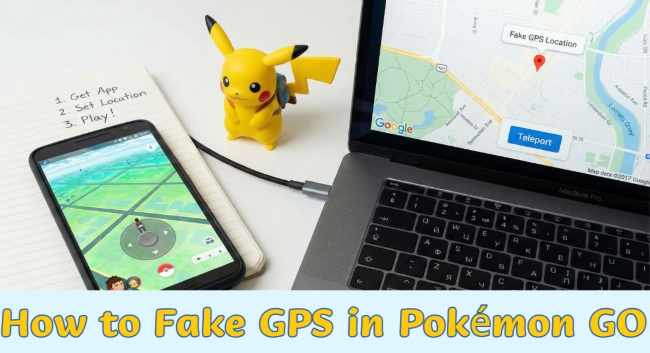
Pokémon GO is one of the world's most popular AR games, blending fun gameplay with real-world exploration. But when rare Pokémon, remote raids, or distant PokéStops are out of reach, faking your GPS location can help. In this guide, we'll show you how to fake GPS in Pokémon GO safely and effectively. Keep reading to learn more!
- Part 1: Can You Still Use Fake GPS on Pokémon GO 2026?
- Part 2: Can Pokémon GO Detect Fake GPS?
- Part 3: How to Fake GPS in Pokémon GO 2026? [No Jailbreak/Root]
- Part 4: Fake GPS Not Working in Pokémon GO? Common Issues & Fixes
- Part 5: How to Prevent a Soft Ban in Pokémon GO?
- Part 6: FAQs about Faking GPS in Pokémon GO
- Part 7: Conclusion
Part 1: Can You Still Use Fake GPS on Pokémon GO 2026?
The short answer is yes, absolutely. Even with Niantic continuously upgrading its anti-cheat system, many players can still use a fake GPS for Pokémon GO to explore the game world virtually.
Modern solutions have evolved to avoid common detection issues, making it possible to teleport, auto-walk, and even join global raids in Pokémon GO 2026. While older tools often trigger warnings or errors, newer fake GPS options are designed to work more smoothly, helping you play smarter rather than risk instant bans.
 Benefits of Pokémon GO Fake GPS Hack:
- Catch Rare Pokémon: Some Pokémon spawn in specific geographic locations. Faking your location allows you to "travel" to these areas without leaving home.
- Join Remote Raids: Raids can sometimes be limited to specific regions, and faking your GPS lets you join these raids no matter where you are.
- Spin More PokéStops: Players in rural areas or locations with few PokéStops may use fake GPS to access more items and battles.
Part 2: Can Pokémon GO Detect Fake GPS?
Yes, Pokémon GO can detect fake GPS if you are not careful. Niantic does not just look at your location; they look at your behavior and your device configuration. For example, one of the most common red flags is impossible travel. If you catch a Pokémon in London and then spin a PokéStop in New York just 10 minutes later, the game immediately knows something isn't right.
Part 3: How to Fake GPS in Pokémon GO No Root/Jailbreak 2026
The safest way to spoof is to avoid rooting (Android) or jailbreaking (iOS) your device, as these actions compromise your phone's security and are easily flagged by banking apps and games. To reduce risks and keep your account safer, it's best to use no-root and no-jailbreak methods. Here are the top 3 methods to fake GPS in Pokémon GO safely.
Method 1: Use TunesKit Location Changer to fake GPS in Pokémon GO [Android/iOS]
If you want to fake GPS in Pokémon GO within seconds, then TunesKit Location Changer is the perfect choice for you. It is a powerful tool that allows you to change your GPS location on iOS and Android devices, making it an ideal choice for Pokémon GO players who want to spoof their location. The software is designed to simulate a movement across the map, giving you the ability to "travel" to different regions, participate in remote raids, catch region-specific Pokémon, or even access PokéStops and gyms in far-off places without leaving home.
Key Highlights of TunesKit Location Changer:- Spoof your iOS & Android devices' GPS location with one click
- Fix GPS joystick not working in Pokémon GO
- Simulate natural movement with custom routes and adjustable speeds
- Include a dedicated Game Mode designed to reduce error detection
Fake GPS in Pokémon GO with TunesKit Location Changer?
Change locations in seconds, walk virtually, and access PokéStops and Gyms anywhere with ease.
 90,000+ Downloads
Here's how you can use TunesKit Location Changer to fake your GPS in Pokémon GO.
Step 1 Connect Your Device
1.1 Download the TunesKit Location Changer for either Windows or Mac. Once installed, open it. Use a USB cable to connect your device to the computer.
1.2 Open Pokémon GO on your device, but don't start playing yet. Make sure the game is running in the background.

Step 2 Set Your Fake GPS Location
2.1 Once your device is connected, you'll see a map interface in TunesKit Location Changer with options to change your location:
- Change Location: Change your iOS and Android devices’ location in one click.
- Jump Teleport: This mode allows you to instantly teleport to any location on the map.
- Two-Spot Movement: This mode allows you to simulate movement between two points, which is useful for walking in the game.
- Multi-Spot Movement: This mode allows you to plan a route and simulate continuous movement, perfect for long distances.
- Joystick Movement: This mode allows you to control your movement with a joystick.
2.2 Click on the map where you want your fake GPS location to appear. You can enter an address or select any location from the map manually.
2.3 After selecting your fake location, click Start Moving to set the new GPS coordinates on your device.

Step 3 Simulate Movement (Optional)
If you want to simulate walking or movement in Pokémon GO:
- 1. Switch to Two-Spot Movement or Multi-Spot Movement in TunesKit Location Changer.
- 2. Select two or more locations that you want to simulate walking between.
- 3. Hit Start Moving to begin simulating movement. You can control the speed and movement by adjusting the settings.

Step 4 Play Pokémon GO with Your New Location
After setting your location, return to the Pokémon GO app on your device. You should now see your new GPS location reflected in the game. You can catch Pokémon, spin PokéStops, join raids, or do anything as if you were actually in the new location.
 Tips for Using TunesKit Location Changer Safely:
1. Avoid Rapid Location Jumps: Don't teleport to far-off locations too quickly. Pokémon GO has systems to detect rapid location changes, and it may flag your account. It's safer to simulate walking or use smaller location changes.
2. Use the Joystick Movement: If you prefer to walk around virtually, use the Joystick Movement available in TunesKit Location Changer. This makes it look more natural when you're moving around the map.
3. Use Caution: Repeated spoofing or extensive use of fake GPS may lead to account penalties. Be mindful of how often you use it, and consider using it sparingly to avoid detection.
Method 2: [Android only] Use Fake GPS Location Spoofer
Fake GPS Location Spoofer is a popular Android app that allows you to change your location for various purposes, including enhancing your Pokémon GO experience. While it’s more accessible than desktop tools, it requires careful setup to work properly.
How to Use Fake GPS Location Spoofer on Android
Step 1: Open the Google Play Store on your Android device. Search for Fake GPS Location Spoofer and download the app. Once installed, grant the necessary permissions for location access.

Step 2: Go to Settings > About Phone on your device. Tap Build Number seven times to activate Developer Options. Navigate to Settings > Developer Options and enable Allow Mock Locations or select Fake GPS Location Spoofer as the mock location app.

Step 3: Open your device's Location Settings. Set the location mode to Device Only or GPS Only to ensure accurate spoofing.

Step 4: Launch the Fake GPS Location Spoofer app. Use the map interface to choose your desired location or search for a specific place using the search bar. Tap the Play button to activate the fake location.

Step 5: Minimize the Fake GPS app and launch Pokémon GO. Your in-game location should now match the fake GPS location you set. Start catching Pokémon, spinning PokéStops, or participating in raids in the spoofed area.
Step 6: If your version of Fake GPS includes joystick movement, enable the joystick to simulate walking around the spoofed location. Adjust your movement speed to mimic natural walking and avoid detection.
Method 3: [iOS only] Use Spoofer Pro
Spoofer Pro is a modified version of the Pokémon GO app designed specifically for iOS users. While it's convenient because it installs directly on your iPhone, it also comes with a higher ban risk compared to desktop-based spoofing tools.
Step 1. Visit the official Spoofer Pro website.
Step 2. Download the IPA file or use a direct installation link (if available). You may need a third-party signing tool like Sideloadly to install the app.
Step 3. Go to Settings > General > VPN & Device Management and trust the developer certificate.
Step 4. Open the app to access the built-in joystick controls, map features, and spoofing settings.

Part 4: Fake GPS Not Working in Pokémon GO? Common Issues & Fixes
Even when using reliable tools, you may occasionally run into situations where fake GPS is not working in Pokémon GO. Don't worry - most of these problems are common and easy to fix once you know what's causing them. Below are the most frequent errors players encounter and how to solve them.
Issue 1: Failed to Detect Location (Error 12)
Error 12 is one of the most common problems, especially on Android devices. It usually means Pokémon GO has detected that a mock location is being used and refuses to load your in-game position.
To fix it:
- Make sure Location Services are enabled on your device, then turn them off and back on to refresh the signal;
- Switch to a different movement mode;
- Clear Pokémon GO cache and app data, then restart the game.
Issue 2: GPS Signal Not Found (11)
Error 11 usually appears when your real GPS signal interferes with the fake one, causing Pokémon GO to lose track of your location.
To fix it:
- Force stop Pokémon GO and reopen the app;
- Try playing indoors, where satellite GPS signals are weaker and less likely to conflict with spoofed locations.
Part 5: How to Prevent A Soft Ban When Faking GPS in Pokémon GO?
A soft ban in Pokémon GO temporarily restricts your gameplay, such as preventing you from catching Pokémon, spinning PokéStops, or participating in raids. It typically occurs when the game detects suspicious activity, like GPS spoofing or rapid location changes. Here are some tips to avoid triggering a soft ban:
1. Avoid Rapid Location Changes
Cooldown Rule: Pokémon GO enforces a cooldown system based on the distance you "travel." For example:
- Moving a few kilometers usually triggers little to no cooldown.
- Traveling hundreds or thousands of kilometers may require waiting several hours before interacting with the game.
Always follow natural travel patterns and avoid teleporting between faraway locations too quickly. Ignoring cooldowns is one of the main reasons players experience fake GPS not working in Pokémon GO.
2. Avoid Overusing PokéStops or Gyms
Spinning a large number of PokéStops or battling multiple Gyms in a short time, especially in spoofed locations, can look suspicious to Niantic's system. Take breaks, vary your activities, and play like a real human would in that area.
3. Log Out Before Making Drastic Changes
If you plan to spoof to a new location far away, log out of the game first. Change your location with the GPS tool, then log back in after waiting an appropriate cooldown period.
Part 6: FAQs about Faking GPS in Pokémon GO
-
1. Can you get banned for using fake GPS in Pokémon GO?
Yes, using fake GPS to spoof your location can result in temporary or permanent bans if Niantic detects suspicious activity. To avoid this, don't teleport too frequently or perform actions that seem unnatural.
-
2. Do I need to root or jailbreak my phone to fake GPS in Pokémon GO?
Most modern spoofing apps, including TunesKit Location Changer, do not require rooting or jailbreaking your phone, making them safer and easier to use.
-
3. Does using a fake GPS affect my in-game progress?
Spoofing your location can sometimes cause issues with game performance, such as glitches or unintentional disconnections, but it typically doesn't directly affect in-game progress unless your account is penalized.
Part 7: Conclusion
Faking your GPS in Pokémon GO can help you explore new areas, catch region-specific Pokémon, and participate in remote raids without physically traveling. One of the easiest and most reliable methods is using TunesKit Location Changer, a user-friendly tool that allows you to spoof your location with precision. It offers features like teleport mode, simulated walking, and joystick movement, making it ideal for enhancing your Pokémon GO experience while minimizing the risk of detection.


