


How to Fix Videos Not Playing in WhatsApp
Videos are one of the most commonly shared media types on WhatsApp, whether for work, family updates, or entertainment. So when a WhatsApp video suddenly won't play - gets stuck loading, shows a black screen, or displays an error - it can be both confusing and frustrating.
The good news is that most WhatsApp video playback issues are caused by simple, fixable problems. In this guide, you'll learn why videos are not playing in WhatsApp and how to fix the issue step by step on both iPhone and Android, starting with easy solutions and moving to more advanced ones only when necessary.

- Part 1. Why is Video Not Playing in WhatsApp?
- Part 2. Common Fixes for iPhone & Android
- Part 3. How to Fix Video Not Playing in WhatsApp on Android
- Part 4. How to Fix Video Not Playing in WhatsApp on iPhone
- Part 5. Bonus: How to Back Up WhatsApp to PC [Messages, Photos, Videos, etc.] [Hot]
- Part 6. Conclusion
Part 1. Why is Video Not Playing in WhatsApp?
Before jumping straight into fixes, it's important to understand what usually causes WhatsApp videos to stop playing. Identifying the root cause helps you avoid unnecessary steps and choose the most effective solution right away.
- 1. Poor or Unstable Internet Connection
- 2. Incomplete or Failed Video Download
- 3. WhatsApp App Bugs or Outdated Version
- 4. Insufficient Storage Space
- 5. App Cache or Temporary Data Issues (Android)
- 6. Corrupted or Unsupported Video Files
Part 2. Common Fixes for iPhone & Android
Before changing advanced settings or reinstalling apps, it's always best to start with basic troubleshooting steps. These fixes address the most common causes of WhatsApp video not playing and often solve the problem within minutes.
Fix 1. Check Your Internet Connection
A stable and consistent internet connection is the foundation of WhatsApp video playback. Unlike streaming apps, WhatsApp must download the entire video file before it can be played. If your connection drops, slows down, or fluctuates during the download process, the video may get stuck loading or refuse to play altogether.
Step 1. Switch between Wi-Fi and mobile data.
Step 2. Move closer to your router.
Step 3. Turn Airplane Mode on and off to reset the network.
Step 4. Avoid public or overloaded Wi-Fi networks.

Fix 2. Make Sure the Video is Fully Downloaded
Even if a video thumbnail appears in the chat, it doesn't mean the file is fully downloaded. WhatsApp videos that are only partially downloaded will often show a loading icon, freeze, or fail to open entirely. Background interruptions - such as switching apps, locking the screen, or losing connectivity - can stop downloads without clearly notifying you.
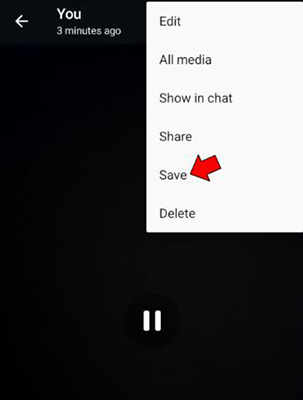
Step 1. Tap the video and press and hold the video screen until a pop-up appears.
Step 2. Tap Save.
Fix 3. Restart WhatsApp and Your Phone
Temporary software glitches can affect how WhatsApp handles media files. These glitches may occur after long uptime, background app conflicts, or system resource strain. Restarting both the app and the phone clears temporary memory and refreshes system processes. This simple step is surprisingly effective and often resolves playback issues instantly.

Fix 4. Update WhatsApp
Running an outdated version of WhatsApp can cause compatibility issues, especially after system updates on iOS or Android. WhatsApp updates frequently include bug fixes, performance improvements, and media playback enhancements. If videos suddenly stop playing, an outdated app version may be the reason.
Step 1. Open the App Store or Google Play Store.
Step 2. Search for WhatsApp.
Step 3. Install any available updates.

Fix 5. Free Up Storage Space
WhatsApp needs sufficient free storage to save, process, and play video files. When your phone storage is nearly full, video downloads may fail or playback may stop midway. Low storage can also prevent WhatsApp from creating temporary files required for decoding videos.

If these quick fixes don't work, your device-specific settings may be causing the issue.
Part 3. How to Fix Video Not Playing in WhatsApp on Android
Android devices offer more control over app data, cache, and permissions, which means Android-specific fixes are often very effective. If WhatsApp videos won't play on your Android phone, the issue i s commonly related to cached data, missing permissions, or media download settings.
Fix 1. Clear WhatsApp Cache
Over time, WhatsApp stores temporary data (cache) to speed up performance. However, these cached files can become corrupted, especially after updates or heavy usage, and interfere with video playback. Clearing the cache removes only temporary files and does not delete chats, videos, or messages.
Step 1. Go to Settings > Apps > WhatsApp.
Step 2. Tap Storage.
Step 3. Select Clear Cache.

Fix 2. Check Media and Storage Permissions
Without proper permissions, WhatsApp cannot access your phone's storage to save or play video files. This often happens after system updates or when permissions are accidentally denied. If permissions are restricted, videos may download but fail to open.
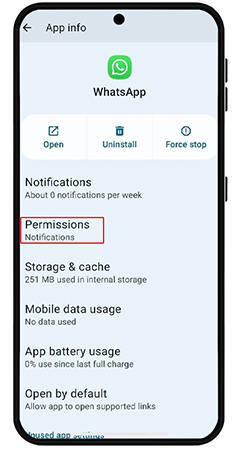
Step 1. Go to Settings > Apps > WhatsApp.
Step 2. Tap Permissions.
Step 3. Ensure Storage/Media/Files permissions are allowed.
Fix 3. Enable Media Auto-Download
If auto-download is disabled, WhatsApp may not fully download videos, especially when switching networks or locking the screen. This results in incomplete files that won't play. Enabling auto-download ensures videos are saved properly before playback.
Step 1. Open WhatsApp.
Step 2. Go to Settings > Storage and data.
Step 3. Enable video auto-download for Wi-Fi or mobile data.

Part 4. How to Fix Video Not Playing in WhatsApp on iPhone
Saving the video allows iOS's native video player to handle playback, which is often more reliable than WhatsApp's built-in player.
Fix 1. Save the Video to the Photos App
Sometimes WhatsApp's in-app player fails even though the video file itself is intact. Saving the video to the Photos app allows iOS's native video player to handle playback, which is often more reliable.
Step 1. Long-press the video
Step 2. Tap Save
Step 3. Open it from the Photos app

Fix 2. Enable Background App Refresh
If Background App Refresh is disabled, WhatsApp may pause video downloads when you switch apps or lock your screen. This leads to incomplete downloads and playback failures.
Step 1. Go to Settings > General.
Step 2. Tap Background App Refresh.
Step 3. Enable it for WhatsApp.

Fix 3. Check iPhone Storage
Low iPhone storage can prevent WhatsApp from saving or processing videos correctly. iOS may silently block downloads or fail to allocate space for playback. Freeing up even a small amount of storage often resolves the issue.

Fix 4. Reinstall WhatsApp
Since iOS doesn't allow cache clearing, reinstalling WhatsApp is the most effective way to remove corrupted temporary data that may be affecting video playback.
Step 1. Go to Settings > General > iPhone Storage > WhatsApp.
Step 2. Select the Offload App (keeps data) or Delete App (removes data) option.
Step 3. Reinstall WhatsApp from your App Store.

Part 5. Bonus: How to Back Up WhatsApp to PC [Messages, Photos, Videos, etc.]
Before trying advanced fixes - such as reinstalling WhatsApp or repairing problematic video files - it's strongly recommended to back up your WhatsApp data first. This helps prevent accidental loss of important chats, videos, and attachments, especially when troubleshooting persistent playback issues.
While WhatsApp offers cloud backups, many users prefer local PC backups for better control, faster access, and offline storage. In this case, TunesKit WhatsApp Transfer can be a practical option for backing up WhatsApp data from your phone to a computer.
Key Features of TunesKit WhatsApp Transfer
Transfer, back up, restore, and export WhatsApp messages between iOS devices without encountering any hassle.
 600,000+ Downloads
Part 6. Conclusion
When a video is not playing in WhatsApp, the issue is rarely permanent. In most cases, it's caused by network instability, storage limitations, app bugs, or corrupted temporary data. By starting with simple fixes and gradually moving to device-specific and advanced solutions, you can resolve the problem efficiently without risking data loss.


