


How to Remove Camera from Lock Screen iPhone? Complete Guide Here!
You pull your iPhone out of your pocket, only to find the battery drained and your gallery full of blurry photos of the floor. Or perhaps you are a parent wanting to prevent your child from accessing the camera without a passcode. Apple's "Swipe Left to Camera" feature is convenient, but for many users, it is a source of frustration, privacy concerns, and battery drain.
If you are searching for how to remove the camera from lock screen iPhone, you have come to the right place. While older guides will tell you that you must disable the camera entirely, that is no longer true in 2025. With the release of iOS 18, you finally have more control.

Method 1: Remove Camera Icon from Lock Screen (iOS 18 or Later)
For years, iPhone users begged Apple for the ability to customize the lock screen shortcuts. With iOS 18, that wish has been granted. If you have updated your device, you no longer need complex workarounds to simply get rid of the camera icon at the bottom right of your screen. This is the recommended method if you just want to stop hitting the button accidentally but still want to use the Camera app when the phone is unlocked.
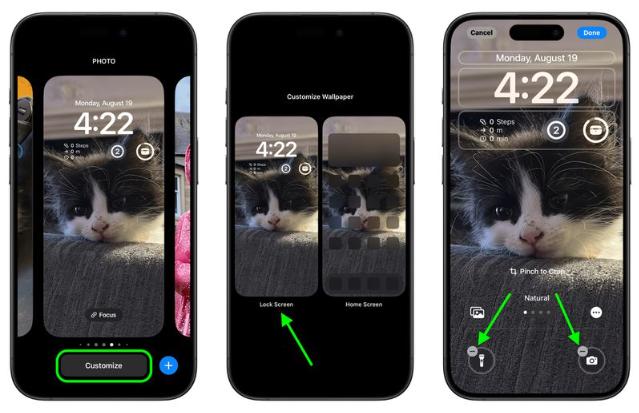
Step 1. Tap the screen or press the power button to wake your iPhone lock screen, but do not unlock it completely (stay on the Lock Screen).
Step 2. Long-press (press and hold) anywhere on the Lock Screen wallpaper until the iPhone ask you to unlock the screen. Unlock your iPhone with passcode or Face ID and then the customization screen will appear.
Step 3. Tap Customize and then select the Lock Screen option.
Step 4. Look at the bottom right corner where the Camera icon sits. You will see a small (-) minus symbol on it. Tap that minus symbol to remove the camera button.
Step 5. You can leave the spot empty, or tap the (+) plus sign to replace it with a different shortcut (like Calculator, Timer, or None).
Step 6. Tap Done in the top right corner and tap your wallpaper again to exit.
 Note
Note
This removes the button. However, on some versions, the "Swipe Left" gesture may still activate the camera. If you need to stop the swipe gesture as well, combine this with Method 3 below.
Method 2: Disable Camera Completely via Screen Time
If you are on an older iOS version, or if you are a parent who wants to ensure your child cannot access the camera at all, this is the only method that 100% blocks the camera.
Warning
This method uses Apple's "Content & Privacy Restrictions." Turning this on will hide the Camera app completely from your Home Screen and App Library. You will not be able to take photos even after unlocking the phone unless you re-enable it.
For iOS 12 to iOS 18:
Step 1. Open the Settings app on your iPhone.
Step 2. Tap on Screen Time.
Note
If you haven't used this before, tap "Turn on Screen Time" and select "This is My iPhone".
Step 3. Tap Content & Privacy Restrictions. Toggle the switch at the top to ON.
Step 4. Select Allowed Apps.
Step 5. Find Camera in the list and toggle the switch to OFF (Grey).

For iOS 11 and Older:
Step 1. Go to Settings > General.
Step 2. Scroll down and tap Restrictions.
Step 3. Tap Enable Restrictions and set a 4-digit passcode.
Step 4. Toggle the Camera switch to OFF.

Method 3: The "Shortcuts" Workaround
What if you want to keep the Camera app on your home screen, but you hate the "Swipe Left" feature on the lock screen? Since Apple doesn't allow you to disable the swipe gesture natively, we can use the Shortcuts app to "trick" the iPhone. We will create a personal automation that immediately locks your iPhone if the Camera app is opened.
Step 1. Open the Shortcuts app (pre-installed on all iPhones).
Step 2. Tap the Automation tab at the bottom.
Step 3. Tap New Automation (or the + sign).
Step 4. Scroll down and select App.
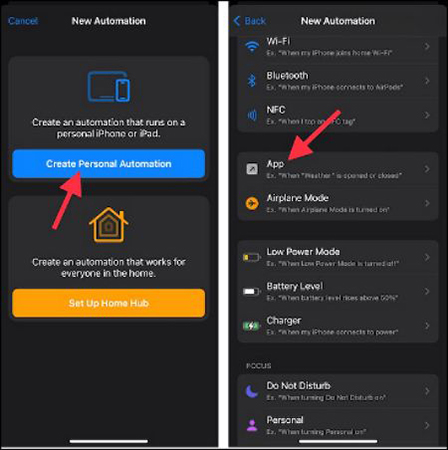
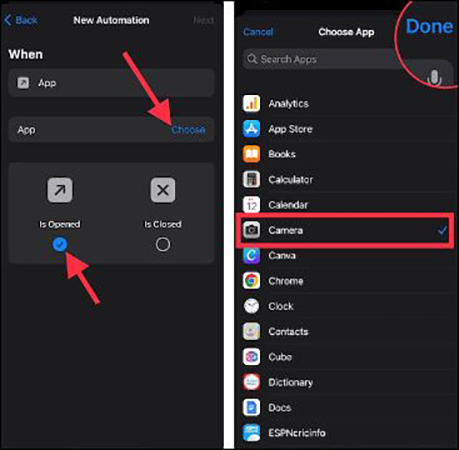
Step 5. Configure the Trigger:
- App: Choose Camera.
- Check "Is Opened".
- Check "Run Immediately" (Important: Do not select "Run after confirmation").
- Tap Next.
Step 6. Add the Action:
- Tap the "New Blank Automation" box.
- Tap Add Action.
- Search for "Lock Screen" and select it.
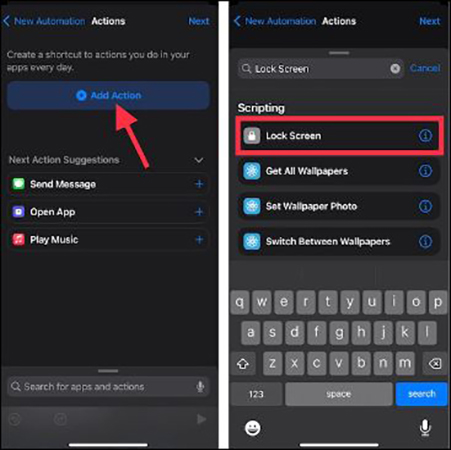
Step 7. Tap Done.
Now, whenever you (or your pocket) accidentally swipes left to open the camera, the Shortcuts app will detect it and immediately lock the screen again. It's a split-second bounce back. To take a photo, you will need to unlock your phone and tap the Camera app icon, or disable the automation temporarily.
Bonus: Forgot Screen Time Passcode? How to Unlock
If you used Method 2 (Screen Time Restrictions) to disable your camera, you likely set a 4-digit Screen Time passcode. This is different from your main lock screen PIN. A common problem users face is forgetting this Screen Time passcode. If you forget it, you cannot re-enable your camera, and you cannot reset the device easily.
This is where TunesKit iPhone Unlocker becomes a life-saver. It is a professional iOS utility designed to remove various locks, including the tricky Screen Time passcode, without losing your data.
Why Choose TunesKit iPhone Unlocker?
Remove the Screen Time passcode without erasing your photos or apps. Remove 4-digit/6-digit passcodes, Face ID, Touch ID, and Apple ID.
 600,000+ Downloads
Guide to Use TunesKit iPhone Unlocker
Step 1Connect iPhone to Computer
Install TunesKit iPhone Unlocker on your PC or Mac. Plug your iPhone in via USB. Choose the "Unlock Screen Time Passcode" option.

Step 2Remove Screen Time Passcode
Click Start. TunesKit will analyze your device and remove the restriction passcode in minutes. Once unlocked, you can go back to Settings and re-enable your Camera app freely.

FAQs about the Camera Icon on iPhone Lock Screen
-
Q1: If I remove the camera from the lock screen, can I still use it for FaceTime?
Yes. If you use Method 1 (iOS 18 Customization), FaceTime and other apps work normally. However, if you use Method 2 (Screen Time Restrictions), the camera hardware is disabled globally, so FaceTime, Instagram, and Snapchat will not be able to use the camera.
-
Q2: Can I remove the Flashlight button too?
Yes! The Method 1 (iOS 18 Customization) instructions apply to the Flashlight icon as well. Long-press the lock screen, tap Customize, and click the minus (-) sign on the Flashlight icon.
Conclusion
Apple has finally listened to users with iOS 18, making it easier than ever to remove the camera from the iPhone lock screen without deleting the app entirely. Whichever method you choose, you can now enjoy a battery that lasts longer and a camera roll free of accidental blurry photos. And remember, if you ever get locked out of your restrictions settings, TunesKit iPhone Unlocker is your reliable backup plan.


