iPad 2 Activation Lock: How to Remove or Bypass It (2026 Guide)

If your iPad 2 is stuck on the Activation Lock screen after a factory reset, you're not alone. This security feature protects lost or stolen devices, but it can also prevent legitimate owners from accessing their own iPads after forgetting their Apple Account credentials or buying a second-hand device.
The good news is that Activation Lock isn't always impossible to remove. In this guide, we'll explain what the iPad 2 Activation Lock is, why it appears, and introduce 4 practical methods to remove or bypass it.

- Quick Answer: Can You Remove the iPad 2 Activation Lock?
- What Is iPad 2 Activation Lock?
- Why Is Your iPad 2 Stuck on the Activation Lock Screen?
- Can You Really Remove iPad 2 Activation Lock?
- How to Remove Activation Lock on iPad 2
- Alternative for Newer iPads and iPhones
- Our Verdict: Which Method Is Best?
- FAQs About iPad 2 Activation Lock
- Conclusion
Quick Answer: Can You Remove the iPad 2 Activation Lock?
Yes—but the available solution depends on why your iPad 2 is locked.
If you know the original Apple Account or can contact the previous owner, removing Activation Lock is relatively straightforward. Apple may also help if you can provide valid proof of purchase. If neither option is available, some professional Activation Lock removal tools may help you bypass the lock on supported devices. Here's a quick comparison:
| Method | Previous Owner Required | Apple Account Required | Difficulty | Success Rate |
|---|---|---|---|---|
| Sign in with original Apple Account | No | ✔ | Easy | Very High |
| Ask previous owner to remove the device | ✔ | No | Easy | Very High |
| Contact Apple Support | No | No | Medium | Medium |
| DNS Bypass | No | No | Medium | Low |
What Is iPad 2 Activation Lock?
Activation Lock has been released since the publication of iOS 7, and activated as the Find My feature is enabled. Once the Activation Lock page shows up, users have to enter the correct Apple Account and password to bypass iPad 2 Activation Lock screen. It is a precise program that protects the device from being accessed by others when the iPad is lost.
When your iPad 2 displays messages such as:
- Activation Lock
- This iPad is linked to an Apple Account
- Enter the Apple Account used to set up this iPad
it means Apple's activation servers have detected that the device is still associated with an existing account.
It's important to understand that Activation Lock cannot be removed simply by restoring the iPad through iTunes or Finder. Since the activation status is stored on Apple's servers rather than locally on the device, reinstalling iPadOS or performing another factory reset won't remove the lock.
Why Is Your iPad 2 Stuck on the Activation Lock Screen?
Before choosing a solution, it's helpful to understand why your iPad 2 is asking for an Apple Account. Different causes require different fixes, and identifying the reason can save you time. The most common situations include:
You Forgot Your Apple Account Password
Many users haven't used their iPad 2 for years. After resetting the device, they realize they no longer remember the Apple Account or password used during the original setup. Fortunately, if the account belongs to you, you can usually recover it through Apple's account recovery service.
You Bought a Used iPad 2
This is one of the most common scenarios. The previous owner restored the iPad without first disabling Find My or removing the device from their Apple Account. As a result, the Activation Lock remains attached to the device, preventing the new owner from completing setup.
The Device Was Factory Reset
Many users believe a factory reset removes everything—including Activation Lock. Unfortunately, that's not how Apple's security works. Even after erasing all content and settings, Activation Lock remains enabled until it's removed from Apple's activation servers.
Find My Was Enabled
Activation Lock is automatically enabled whenever Find My is turned on. Many users don't even realize it has been activated because there's no separate switch for Activation Lock itself. If Find My was previously enabled, the device will require verification after every erase or restore.
Can You Really Remove iPad 2 Activation Lock?
This is probably the biggest question people ask. The answer is yes—but only under certain situations.
Whether Activation Lock can be removed depends largely on who owns the device and whether you can verify that ownership. You can usually remove Activation Lock if:
- You remember the original Apple Account credentials.
- The previous owner is willing to remove the device remotely.
- You have a valid purchase receipt and Apple agrees to assist.
- Your device is supported by a professional Activation Lock removal solution.
However, removing Activation Lock is generally not possible if:
- The iPad has been reported lost or stolen.
- You cannot prove legitimate ownership when requesting Apple's help.
- You rely on websites claiming to generate free Activation Lock codes or universal bypass tools. These services are almost always scams and rarely work as advertised.
How to Remove Activation Lock on iPad 2
If your iPad 2 is locked by Activation Lock, don't rush to try random online tools or so-called unlock generators. The safest and most effective solution depends on whether you still have access to the original Apple Account or can contact the previous owner. Below are four proven methods, starting with Apple's official solutions before moving to alternative options.
Method 1. Sign In with the Original Apple Account
If you purchased the iPad 2 yourself and simply forgot your Apple Account password, signing in with the original credentials is the easiest way to remove Activation Lock. Before proceeding, make sure the iPad is connected to a stable Wi-Fi network.
- Step 1. Turn on your iPad 2 until you reach the Activation Lock screen.
- Step 2. Enter the Apple Account email address originally used to activate the device. Type the corresponding password.
- Step 3. Tap Next and wait for Apple's activation server to verify your account.
- Step 4. Once verification is done, Activation Lock will be removed automatically, allowing you to finish the setup process.

 Note
Note
If you've forgotten your password but still own the Apple Account, you can reset it using Apple's account recovery process. After updating your password, return to the Activation Lock screen and sign in again.
Method 2. Ask the Previous Owner to Remove the Device
If you bought a used iPad 2 that is still linked to someone else's Apple Account, the previous owner can remotely remove Activation Lock without accessing the device. This is one of the most reliable solutions when you can still contact the seller.
- Step 1. Ask the previous owner to visit iCloud.com.
- Step 2. Sign in with the Apple Account and password associated with the iPad 2.
- Step 3. Move to Find My section. Click All Devices. And select the iPad having an Activation Lock page. Finally, click Remove to disconnect the previous Apple Account to the iPad.
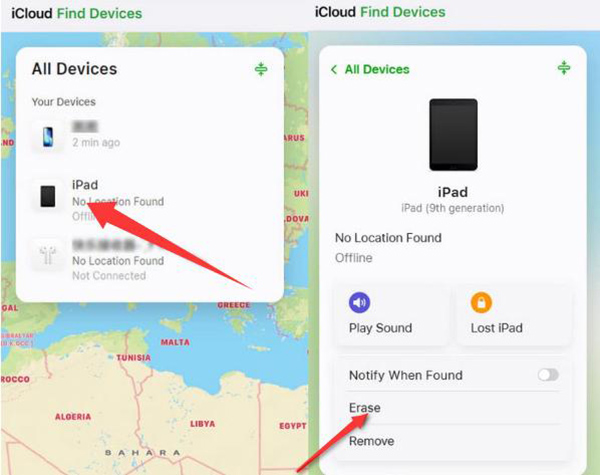
After the device is removed from the Apple Account, restart the iPad 2 and begin the setup process again. The Activation Lock screen should no longer appear.
Method 3. Ask Apple Support for Help
If you're the legitimate owner but no longer have access to the Apple Account, Apple Support may be able to remove Activation Lock after verifying ownership. Approval isn't guaranteed, but it's worth trying before considering alternative methods like thirty-part tools.
Prepare the following documents before contacting Apple:
- The original purchase receipt or invoice
- The iPad 2 serial number or IMEI (Cellular models)
- A valid photo ID if requested
Once your ownership has been verified, Apple may remove the Activation Lock from its activation servers. The review process can take anywhere from several hours to a few days.

Method 4. Try DNS Bypass (Temporary Access Only)
DNS Bypass is an older workaround that redirects parts of the activation process to a custom DNS server. Unlike the previous methods, it does not actually remove Activation Lock. Instead, it provides limited access to certain functions.
Because Apple has strengthened its activation security over the years, DNS Bypass is far less effective than it once was. It should be viewed only as a temporary workaround rather than a permanent solution.
- Step 1. Press the iPad home button and tap on Start Over to back to the first page of the activation.
- Step 2. Finish the former settings and move on to WiFi Settings page.
- Step 3. Tap icon i near the WiFi, and go to select Forgot this Network.
- Step 4. Go back and tap on the icon i again, then select Configure DNS. Select Manual and enter one of the DNS addresses provided below.
- North America: 104.154.51.7
- South America: 35.199.88.219
- Europe: 104.155.28.90
- Asia: 104.155.220.58
- Global: 78.100.17.60
- Step 5. Tap Back. Connect to the WiFi again. Go ahead to tap Back when the page shows up. Finally, select Activation help.

Alternative for Newer iPads and iPhones
Although iPad 2 isn't supported by most professional Activation Lock removal software, newer Apple devices have more options available.
For supported iPhones and newer iPads, TunesKit iPhone Unlocker can help eligible users bypass Activation Lock when they can't access the original Apple Account. The software offers a guided unlocking process and supports a range of compatible devices. If you're unsure whether your device is supported, check the latest compatibility list before downloading the software.
Key Features of TunesKit iPhone Unlocker
Bypass Activation Lock on iPhone/iPad without Apple Account. Unlock iOS screen, remove Apple Account, and remove MDM from iPhone/iPad.
 600,000+ Downloads

Our Verdict: Which Method Is Best?
Different situations require different solutions. Here's a quick summary to help you choose the most suitable method.
| Method | Best For | Permanent | Difficulty | Recommendation |
|---|---|---|---|---|
| Sign in with the original Apple Account | You know the account credentials | ✅ Yes | Easy | ⭐⭐⭐⭐⭐ |
| Ask the previous owner to remove the device | Used iPads with a reachable seller | ✅ Yes | Easy | ⭐⭐⭐⭐⭐ |
| Contact Apple Support | You have proof of purchase | ✅ Yes | Medium | ⭐⭐⭐⭐☆ |
| DNS Bypass | Temporary access only | ❌ No | Medium | ⭐⭐☆☆☆ |
| TunesKit iPhone Unlocker | Supported newer iPads and iPhones only | Depends on supported models | Easy | ⭐⭐⭐⭐☆ |
FAQs About iPad 2 Activation Lock
-
Can I bypass iPad 2 Activation Lock only with jailbreak?
No, you can't. Jailbreaking is to access your system and break the restriction without the permission from Apple, but it will not directly remove the iCloud lock. An additional third-party removal tool is still needed.
-
Is there an IMEI or serial number unlock service for iPad 2?
Many websites claim they can remove Activation Lock using only an IMEI or serial number, but these claims are often misleading. There is no universal IMEI-based unlock method officially recognized by Apple. Always verify a service's reputation before making a purchase.
-
Can I create a new Apple Account for my device after the iCloud lock is removed?
Sure. You're able to log in to the App Store and iTunes Store with the new Apple Account to download apps and enjoy music service.
Conclusion
To bypass iPad 2 iCloud Activation Lock, you can sign in with the original Apple Account, ask the previous owner to remove the device remotely, or contact Apple Support with proof of ownership. If none of these options are available, DNS Bypass may provide temporary access, but it isn't a permanent solution.
For users with newer compatible iPhones and iPads, professional tools such as TunesKit iPhone Unlocker may offer an additional option. Choosing legitimate methods not only protects your device but also helps you avoid scams and unnecessary expenses.