


Forgot PowerPoint Password? Simple Recovery Guide
We have all been there: you are ready to present or edit a critical presentation, only to be blocked by a security prompt you do not recall setting. When you forgot PowerPoint password credentials, it can feel like your hard work is locked away forever. Fortunately, this is a common issue, and there are several reliable methods to regain access to your files without needing advanced technical skills.
Before you panic or start recreating your slides from scratch, take a deep breath. Most of the time, the solution is simpler than you might expect. This guide walks you through practical methods to recover forgotten PowerPoint password quickly and easily.

- Part 1: Which Password Did You Forget?
- Part 2: 5 Ways to Recover Forgotten PowerPoint Password
- Method 1: Use "Save As" Option to Remove Read Only Limitations
- Method 2: Change the File Extension to Bypass Read-Only Status
- Method 3: Use TunesKit File Password Recovery to Remove Read-Only in 1-Click
- Method 4: Use TunesKit File Password Recovery to Recover Open PasswordHOT
- Method 5: Use Online Tool to Recover Password
- Part 3: Conclusion
Part 1: Which Password Did You Forget?
Before attempting any fixes, it is crucial to understand what kind of lock you are dealing with. PowerPoint generally uses two types of protection, and the solution depends entirely on which one is active.
1. Password to Modify (Read-Only Restriction) If you can open the presentation and view the slides but cannot edit the text, change the layout, or save changes, you are dealing with a "Password to Modify." This is a lower level of security. The content is visible; the file is simply locked to prevent accidental or unauthorized changes. Because the data is not fully encrypted, this is relatively easy to bypass.
2. Password to Open (Full Encryption) This is the "hard" lock. When you try to open the file, a popup appears immediately asking for a password. You cannot see a single slide or even the file metadata until you enter the correct string. This file is fully encrypted. To open it, you generally need to recover the original password, as there is no "backdoor" to simply remove it without cracking the encryption key first.

Part 2: 5 Ways to Recover Forgotten PowerPoint Password
If your file opens but refuses to let you type, you are in luck. You can often bypass this limitation with ease.
Case 1: Solutions for "Password to Modify" (Read-Only)
It is more easier to deal with the "Password to Modify" than "Password to Open." Let's follow these 3 methods.
Method 1: Use "Save As" Option to Remove Read Only Limitations
Sometimes, the restriction is a simple "Mark as Final" status or a soft read-only tag.
Step 1: Open your locked PowerPoint file. Since you can view it, navigate to the File menu.
Step 2: Select Save As and choose a different location on your computer.
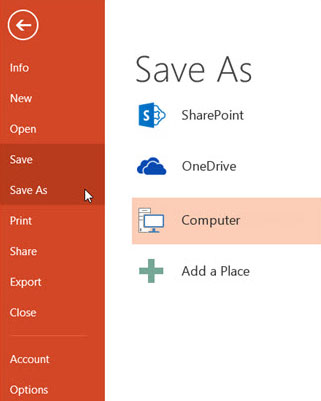
Step 3: Give the file a new name. Sometimes, saving a fresh copy removes the "Read-Only" attribute inherited from the original file, allowing you to edit the copy freely.
Method 2: Change the File Extension to Bypass Read-Only Status
If the "Save As" method fails, you can manually remove the editing restriction by tweaking the file's internal code. This sounds technical, but it is quite safe if you follow the steps.
Step 1: Create a backup copy of your locked PowerPoint file. Never perform this on the only copy you have.
Step 2: Right-click the file and choose Rename. Change the file extension from .pptx to .zip Windows will ask if you are sure; click Yes.
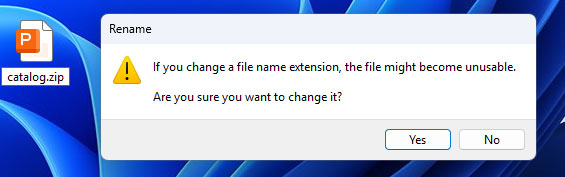
Step 3: Open the new ZIP file (do not extract it yet). You will see a folder structure. Navigate to the ppt folder.
Step 4: Look for a file named presentation.xml. Drag this file out of the ZIP window and onto your desktop.
Step 5: Right-click the presentation.xml on your desktop and select Open with > Notepad.

Step 6: Press Ctrl + F to open the Find tool. Search for the text modifyVerifier.
Step 7: You will find a tag that looks something like <p:modifyVerifier ... />. Delete this entire tag from the opening bracket to the closing bracket.
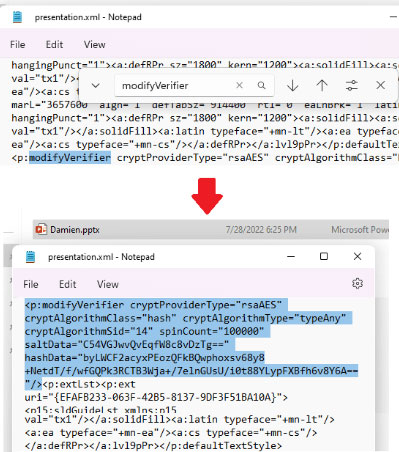
Step 8: Save the Notepad file and close it. Drag the modified presentation.xml back into the ZIP window, replacing the old one.
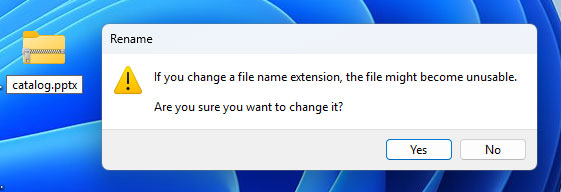
Step 9: Rename the file extension back from .zip to .pptx. You should now be able to open and edit the presentation without restriction.
Method 3: Use TunesKit File Password Recovery to Remove Read-Only in 1-Click
If changing the file extension and deleting code is too complicated, or the Save As option is grayed out and unavailable, then what other ways are there to remove the read-only restriction in PowerPoint? TunesKit File Password Recovery comes in handy, it can help you remove the read only status in 1-click and without the needing to guess a password.
Apart from removing the PowerPoint read-only status, it can also remove read only from Excel file, Word Doucment, PDF, and other Office types. Within seconds, you can freely edit your files without any restrictions.
How to remove PowerPoint read-only restrictions using TunesKit File Password Recovery.
Step 1: Launch TunesKit File Password Recovery on your computer and select the Excel/Word/PPT tab on the main interface.

Step 2: Click on the "Remove Office Restriction" option. This is distinct from the "Recover Office Password" option, which is used for finding lost opening passwords.

Step 3: Import your PowerPoint file (.ppt or .pptx) by dragging it into the window or clicking the "Add" ("+") button to browse your folders. Click the "Start Remove" button at the bottom right corner.

Step 4: The software will process the file and remove the read-only restriction instantly, saving an unprotected version of the presentation.

Case 2: Solutions for "Password to Open" (Full Encryption)
If you cannot open the file at all, the XML trick will not work because the XML content itself is scrambled. In this scenario, you need other methods to recover the actual password.
Method 4: Use TunesKit File Password Recovery to Recover Open Password
When you are locked out of a PowerPoint presentation by a "Password to Open" (full encryption), simple tricks like renaming files usually fail because the data itself is scrambled. You need a tool that can mathematically find the correct key. You can choose TunesKit File Password Recovery to unlock your open password.
This software is an all-in-one solution for various encrypted file types like Excel, Word, ZIP, and RAR, not just PowerPoint. It can quickly remove PowerPoint password without data loss, and it can remove permissions from PDF. Your sensitive data never leaves your device. It utilizes multi-core CPU acceleration to test password combinations faster than standard recovery tools.

Forgot PowerPoint Password? Fast Recovery with TunesKit
TunesKit File Password Recovery enables you to smartly recover your lost encryption key or instantly remove editing restrictions using advanced attack modes that guarantee 100% data safety.
 600,000+ Downloads
600,000+ Downloads
600,000+ Downloads
Step 1Download and Install Program
Launch TunesKit File Password Recovery. In the main interface, you will see options for different file types. Click on the "Excel/Word/PPT" tab.
Step 2Select the Correct Mode
You will see two large buttons. Select "Recover Office Password" (the left option). Note: Do not select "Remove Office Restriction" – that is for read-only files, not for files that won't open.
Step 3Import Your Locked File
Click the "+" (Add) button in the center of the screen. Navigate to your computer folders and select the locked PowerPoint (.ppt or .pptx) file. Once the file is loaded, look at the "Recovery Mode" section on the right/bottom. Choose the one that fits your situation:
- Dictionary Attack: Best if you used a common word. (Fastest)
- Combination Attack: Best if you remember part of the password. You can configure the "Settings" to tell the software, "The password is 6-8 characters long and contains lowercase letters and numbers."
- Brute Force Attack: Select this if you have absolutely no idea what the password is. (Slowest but most thorough).
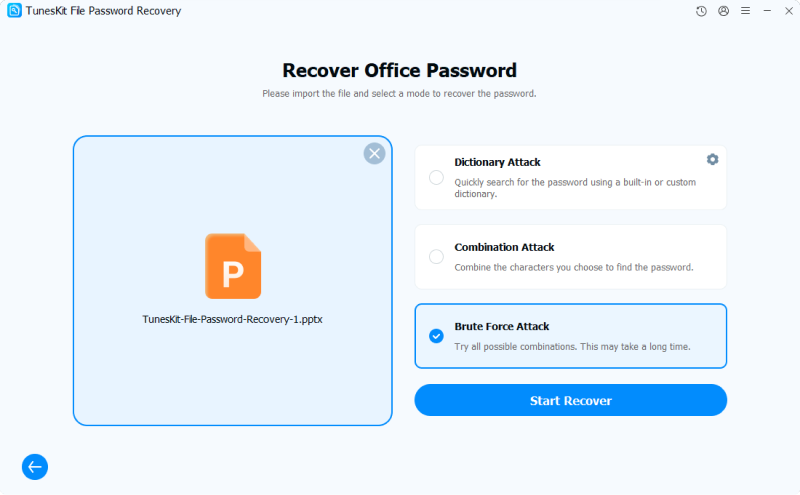
Step 4Start Recovery PowerPoint Password
Click the "Start Recover" button. The software will begin testing passwords. You will see a progress bar and an estimated time remaining.
 Tip
Tip
This process can take time depending on the password's complexity. You can pause and resume the process if needed.
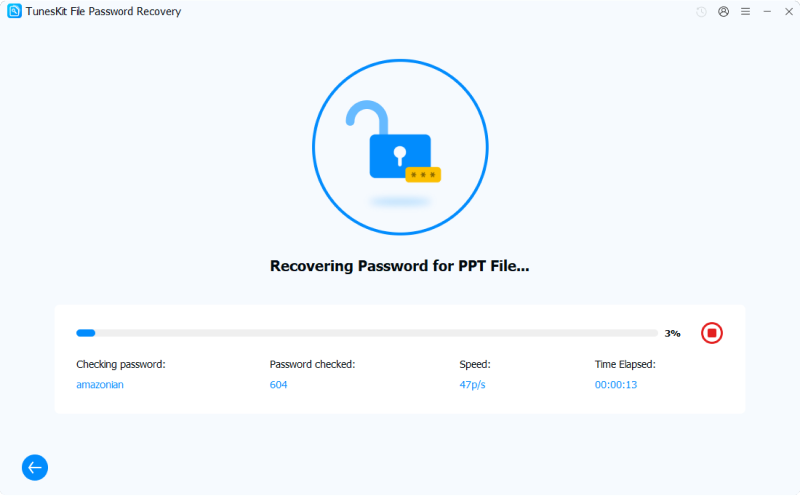
Step 5Unlock the File
When TunesKit finds the match, a window will pop up displaying the password. Click the Copy icon next to the password. Open your PowerPoint file normally and paste the password when prompted.

Method 5: Use Online Tool to Recover Password
Using online tools to recover a PowerPoint password is a double-edged sword: it is the most convenient method for non-technical users. Most free online tools have a file size limit (usually around 100MB). Large presentations with high-res images or video may be rejected. And if you upload your file on the web, it may at the risk of privacy leverage.
How to Recover Password Using Online Tools
The most popular and reliable online tool for this purpose is LostMyPass, which claims a high success rate for weak passwords.
Step 1: Open your web browser and navigate to the LostMyPass website (specifically the PowerPoint Recovery section).
Step 2: Look for the "Drop file to upload" box. Drag and drop your locked .pptx or .ppt file into this area. Alternatively, click the button to browse your computer and select the file.

Note
Ensure you are not uploading a file larger than their maximum limit (usually 100MB).
Step 3: The site will immediately attempt to unlock the file using a database of millions of common passwords. This usually takes between 1 to 5 minutes.
- If successful: It will display the password on the screen. You can copy it, open your local file, and paste it in.
- If failed: It will tell you the password is "Strong" and will likely ask for payment to perform a "Brute Force" attack on their dedicated servers (which can take hours or days).
Step 4: Once you have the password, open your PowerPoint presentation on your computer. Enter the recovered password when prompted.
Recommendation: Immediately go to File > Info > Protect Presentation > Encrypt with Password and delete the password to prevent future lockouts.

Part 3: Conclusion
If you have forgot PowerPoint password credentials, TunesKit File Password Recovery offers the safest and most reliable way to regain access. Unlike risky online tools, this software processes everything locally to protect your privacy while using smart attack modes—like Brute Force with Mask—to crack complex encryption or instantly remove editing restrictions, ensuring you get back to your presentation without losing data.


