


Share Location Unavailable on iPhone [iOS 18/26]? Fix it Now!
Are you trying to share your location with friends or family, but your iPhone keeps displaying the "Share My Location Unavailable. Unable to connect to server. Please try again later." error message after updating to iOS 18/26?
This can be a troublesome issue, especially when you need to quickly let others know where you are. But don't worry, this post will guide you through some useful ways to help fix share location unavailable on iPhone, and get the location sharing feature working well on your iPhone.

- Why Is Share Location Unavailable?
- [Video Guide] How to Fix Share Location Unavailable on iPhone
- Common Ways to Fix Share My Location Unavailable iOS 18/26
- Fix 1. Check Your Location Services
- Fix 2. Turn On Share My Location in Find My
- Fix 3. Refresh Network Connections and Time Data
- Fix 4. Restart Your iPhone
- Fix 5. Re-authenticate Your Apple Account
- Fix 6. Check Your Internet Connection
- Fix 7. Verify Permissions For The App
- Fix 8. Update iOS to the Latest Version
- Fix 9. Reset Location & Privacy
- One-stop Solution to Fix Share My Location Unavailable on iOS 18/26HOT
- FAQs About Share My Location Unavailable iOS 18/26
- Conclusion
Why Is Share Location Unavailable?
The "Share My Location" feature can be unavailable for a variety of reasons related to device settings, software issues, or service restrictions. Here are several typical reasons why share location unavailable.
- 01 Location Services Disabled: The most common reason is that Location Services are turned off. To use location sharing, you need to enable Location Services on your device.
- 02 Privacy Settings: You might have restricted which apps can access your location. Ensure that the app you're trying to share your location through has the necessary permissions.
- 03 Airplane Mode: If your device is in Airplane Mode, it may not be able to access GPS or cellular networks, which are often used to determine and share your location.
- 04 No Internet Connection: Sharing your location typically requires an internet connection. If you're not connected to Wi-Fi or cellular data, you won't be able to share your location.
- 05 Device Restrictions: If you're using a device provided by your employer or if you have parental controls enabled, there may be restrictions in place that prevent location sharing.
- 06 iOS System Bugs: An update bug or iOS glitch in your system can cause location services to be unavailable on your iPhone. Your device may be affected by an iOS bug that causes "Share my Location Unavailable iOS 18/26."
- 07 Incorrect Date and Time Settings: Wrong data and time can cause issues with location-based services. It is important to ensure that your device's date and time settings are accurate for location sharing to work properly.

[Video Guide] How to Fix Share Location Unavailable on iPhone
In this video guide, we'll walk you through 6 effective methods to fix "Share Location Unavailable" error. From checking location settings to resolving system glitches, these solutions can help you quickly restore location sharing on your iPhone.
Common Ways to Fix Share My Location Unavailable iOS 18/26
After understanding the possible causes and having watch the video guide of the "Share Location Unavailable" issue on iPhone, it's time to try some practical solutions. The following methods can help restore location sharing and get the feature working properly again.
Fix 1. Check Your Location Services
The first thing you should check is whether your Location Services are enabled. Here's how you can do that:
- Step 1. Open the Settings app on your iPhone.
- Step 2. Scroll down and tap on Privacy & Security.
- Step 3. Tap on Location Services.
- Step 4. Ensure that the Location Services toggle is turned on (green).
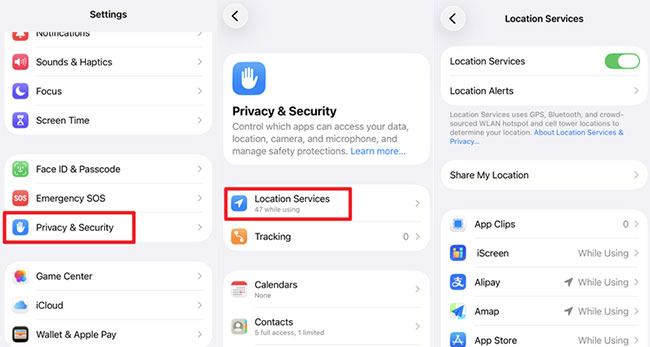
If Location Services are already on, try toggling it off and on again to refresh the service.
Fix 2. Turn On Share My Location in Find My
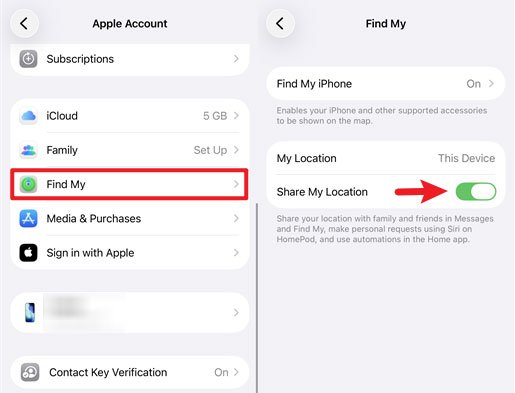
When sharing your real-time location, you need to ensure that the "Share My Location" option is enabled in settings. If location services are on, but the "Share My Location" option is not enabled, you will not be able to share your location with family and friends in Messages and Find My, make personal requests using Siri on HomePod, and use automations in the Home app.
Follow the steps below to turn on iOS 18/26 "Share My Location" option on iPhone:
- Step 1. Open Settings app on your iPhone. Tap your name (Apple Account) at the top screen, and select Find My option.
- Step 2. In the Find My options, make sure the toggle switch for Share My Location is enabled.
Fix 3. Refresh Network Connections and Time Data
Your iPhone relies on a perfect synchronization of internet data and server timestamps to pinpoint and share your exact location. A weak cellular signal or a mismatched system clock can cause silent failures in background tracking services. A quick reset of these elements often clears up the communication bottleneck.
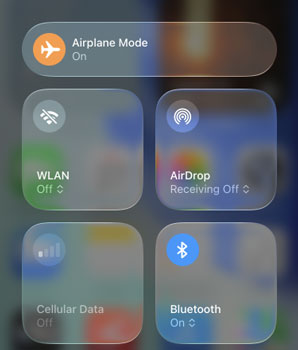
- Step 1. Toggle Airplane Mode on for 15 seconds, then turn it off to force a fresh network reconnection.
- Step 2. Navigate to Settings > General > Date & Time, and ensure the "Set Automatically" option is toggled on to sync perfectly with Apple's servers.
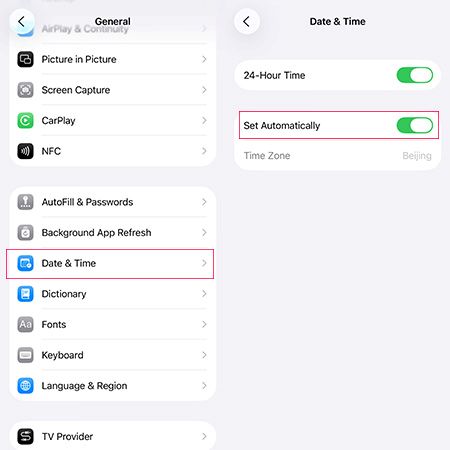
Sometimes, the simplest connection resets yield the best results.
Fix 4. Restart Your iPhone
Sometimes, a simple restart can fix temporary glitches that may be causing the issue. Let's see how to restart your iPhone.
- Step 1. Keep holding down the side button and one of the volume buttons until you see the slider to power off.
- Step 2. Drag the slider to turn your device off.
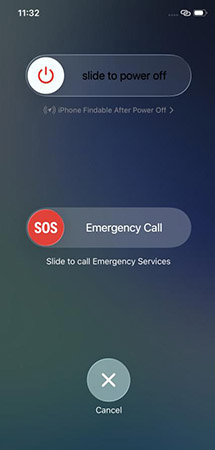
- Step 3. After the device turns off, press and hold the side button again until you see the Apple logo.
Fix 5. Re-authenticate Your Apple Account
Location sharing is deeply tied to your Apple Account and iCloud data synchronization. When security tokens expire or cloud data gets stuck during a system transition, services like Find My will temporarily suspend your sharing privileges to protect your privacy. Logging out and back into your account forces a fresh security handshake with Apple's servers.
- Step 1. Open Settings, tap your name at the very top of the screen, and scroll to the bottom to tap Sign Out.
- Step 2. Choose to Sign Out But Don't Erase on the device.
- Step 3. Wait a while after signing out, then log back in with your credentials and attempt to share your location again.

Fix 6. Check Your Internet Connection
Location sharing requires an active internet connection. Make certain that your iPhone is linked to a Wi-Fi network or that cellular data is turned on.
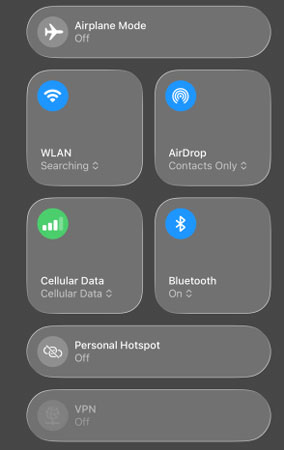
- Step 1. Swipe down from the top-right corner of your iPhone to access Control Center.
- Step 2. Tap on WLAN and make sure you're connected to a network.
- Step 3. Alternatively, tap on Cellular Data option and ensure that Cellular Data is turned on.
Fix 7. Verify Permissions For The App
If you're using a specific app to share your location, such as iMessage or Find My, you need to make sure the app has the necessary permissions to access your location:
- Step 1. Move to Settings > Privacy & Security > Location Services.
- Step 2. Scroll down to find the app you're using to share your location.
- Step 3. Tap on the app and check the permissions – it should be set to While Using the App or Always.
- Step 4. It is a good idea to turn the Precise Location toggle button on to improve positional accuracy.

Fix 8. Update iOS to the Latest Version
Updating to the latest iOS fixes the "Share Location Unavailable" error by patching core software bugs and refreshing your network connections. Additionally, it resolves stuck iCloud data and updates crucial security protocols, which allows Apple's servers to successfully authenticate and broadcast your location again.
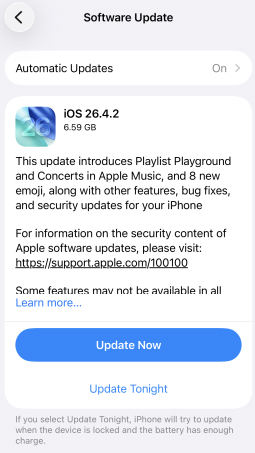
- Step 1. Tap on Settings app on your iPhone, then move to General > Software Update.
- Step 2. If the latest update is available, tap the Update Now button. Proceed by adhering to the instructions displayed on the screen to complete the update installation.
Fix 9. Reset Location & Privacy
Resetting your location services can help improve the accuracy of your location tracking if you've been having issues with it. Also, if you're experiencing problems with location-based features or apps, resetting these settings can help resolve any underlying issues that may be causing the problems. Here's the guide to reset location and privacy.
- Step 1. Launch Settings app on your iPhone, tap General, and scroll down to select Transfer or Reset iPhone.
- Step 2. Tap Reset option. In the pop-up dialog box, select Reset Location & Privacy. Follow the on-screen prompt to reset your location.

One-stop Solution to Fix Share My Location Unavailable on iOS 18/26
Share My Location Unavailable iOS 18/26 is often caused by iOS system errors and software glitches. TunesKit iOS System Recovery is the perfect tool for fixing iOS system errors and glitches in one-click and without losing data. It is a software designed for iOS users to fix more than 150 iOS issues on iPhone/iPad/iPod Touch without data loss, including AirDrop not working on iPhone, iPhone stuck on Apple Logo, boot loop, sleep mode, and white lines on screen, etc.
In addition to the repair function, it also allows you to put your iOS device into or out of recovery mode, upgrade or downgrade iOS, repair iTunes error for free, and reset your device. It has a simple and intuitive interface that makes it easy for even novices to use.
Key Features of TunesKit iOS System Recovery
Fix share my location unavailable without date loss, available on Mac/Win and supports iOS 26, Provide Standard Repair and Deep Repair to fix.
 600,000+ Downloads
Here's the steps to use this tool to fix share location unavailable on iPhone without losing any data:
Step 1Link iPhone to PC
Install TunesKit iOS System Recovery on your computer, then connect your iPhone using a Lightning cable. Click iOS System Repair on the main screen of the software. Simply click Start button to continue.

Step 2Choose a repair mode
There are two modes to choose from: standard repair causes no data loss and deep repair erases all data. I recommend choosing Standard Repair first. If it doesn't work, choose another mode instead.

Step 3Download firmware package
Confirm the device information, select the firmware version and click the Download button to start downloading the firmware package.

Step 4Fix share location unavailable in minutes
Once you have finished downloading the firmware package, click the Start Standard Repair button to initiate the repair. The software will run the repair process on the device. Please avoid using the iPhone throughout repair process. iPhone will restart automatically when the repair process is complete.

FAQs About Share My Location Unavailable iOS 18/26
-
Why can't my friends see my location even though I've shared it with them?
Verify that you've selected the correct person to share your location with and that they have accepted your invitation. Also, check your network connection and their device's ability to receive location information.
-
What does share location unavailable mean?
"Share location unavailable" typically means that someone you're trying to share your location with, or from whom you're trying to request their location, is not currently allowing their device to share its location information. This could be due to privacy settings, network issues, or the person manually disabling location sharing on their device.
-
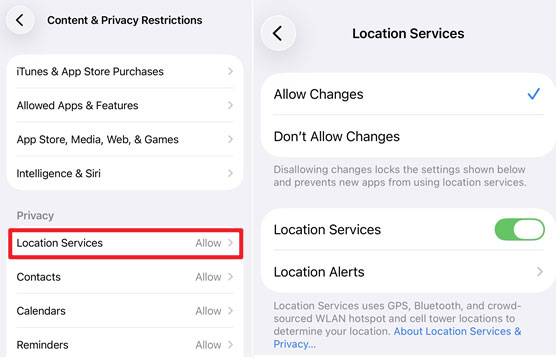
What should I do if "Share My Location" is greyed out?
Check if there are any restrictions set up on your device under Screen Time > Content & Privacy Restrictions > Location Services. And switch the permission to "Allow Changes".
Conclusion
Well, that's all about the reasons and fixes for "share location unavailable on iPhone". When you need to use location services, it can be quite irritating to encounter an error where sharing your location is unavailable, especially when you arrive in an unfamiliar place. However, you can solve this problem through the solutions mentioned in this post. TunesKit iOS System Recovery is the best solution for quickly dealing with iOS-related issues. It can solve all iOS errors with ease.


