


How to Fix iTunes Error 3004 without Data Loss
Have you ever come into a situation where you try to update your iPhone using iTunes, but an error warning pops up and told you there is an error 3004 occurs? For many iTunes users, it is not a usual condition to meet iTunes error codes. Once you see the warning window, your computer or your iOS device must encounter some issues in hardware or software. If you are now troubled by this error, you are on the right page. In this post, you will learn what is this error 3004, why does it happen on your iTunes, and the best solutions to fix it without losing your iPhone data.

- Part 1. What Is iTunes Error 3004?
- Part 2. Top 7 Methods to Fix iTunes Error 3004
- Method 1. Check your network connection
- Method 2. Fix iTunes error 3004 using TunesKit iOS System RecoveryHOT
- Method 3. Check your antivirus and firewall
- Method 4. Restart your computer and iOS devices
- Method 5. Check date and time settings
- Method 6. Update or reinstall your iTunes
- Method 7. Try using DFU mode for restoration
- Part 3. FAQs about iTunes Error 3004
- Part 4. Summary
Part 1. What Is iTunes Error 3004?
iTunes Error 3004 is an error that typically occurs when you are trying to update or restore an iPhone, iPad, or iPod using iTunes. This error indicates that iTunes is unable to establish a proper connection with Apple's update servers, which prevents the firmware from being verified or downloaded successfully.
When iTunes Error 3004 appears, the update or restore process is interrupted and cannot be completed. As a result, your device may remain stuck in recovery mode or fail to finish the restoration. This issue is most commonly encountered during iOS updates, system restores, or firmware downgrades performed through iTunes.
Several factors can trigger iTunes Error 3004, including an unstable internet connection, Apple server outages, outdated iTunes software, firewall or security settings blocking iTunes, or corrupted iOS system files. In some cases, incorrect system date and time settings on your computer may also interfere with communication between iTunes and Apple's servers.
 See More: 6 Ways to Fix iTunes Error 0x80090302
Part 2. Top 7 Methods to Fix iTunes Error 3004
Now that you understand the possible causes of this issue, let's move on to the five methods to fix iTunes Error 3004.
Method 1. Check your network connection
iTunes error 3004 can be due to a weak internet connection. If your computer is offline, iTunes will connect to the Update Server unsuccessfully. You should check whether if your computer is disconnected from WLAN, or the network cable is plugged mistakenly. If your internet is still offline and this error keeps appearing, try to restart your modem and router.

Method 2. Fix iTunes error 3004 using TunesKit iOS System Recovery
TunesKit iOS System Recovery is a one-stop iOs fixing tool that helps you fix different iOS issues like iPhone passcode not working, iTunes error 56, Voice Control not working on iPhone, and iTunes error 3004. It can fix iOS issues in several steps without data loss. With this amazing iOS fixing tool, though you know nothing about iOS repair, you can fix your iPhone easily by yourself quickly and safely.
One-Click Solution for iTunes Error 3004
TunesKit iOS System Recovery repairs system errors that cause iTunes Error 3004 while keeping all your data intact.
 600,000+ Downloads
Let's see the detailed tutorial for fixing iTunes error 3004.
Step 1Connect your iPhone to TunesKit iOS System Recovery
To begin with, connect your iPhone to TunesKit iOS System Recovery using a lightning to USB cable, and select iTunes Repair on the main interface.

Step 2Check iTunes Error
TunesKit iOS System Recovery will automatically fixing your iTunes on your computer, wait patiently to let the software repair your iTunes error.

Step 3Fix iTunes Error 3004 for Free
Once the repair is complete, click the Restart or Done button to relaunch iTunes. After that, iTunes Error 3004 should be resolved, and iTunes should function normally.

Method 3. Check your antivirus and firewall
If you are running antivirus while connecting your iPhone to iTunes, the antivirus program may regard iTunes as a harmful process and stop it mistakenly. Disable the antivirus program temporarily if you are attempting to update your iPhone on your computer. Besides, checking the firewall settings is also a helpful way for fixing error 3004 iTunes.

Method 4. Restart your computer and iOS devices
If the network is working normally on your computer, simply rebooting your devices can fix iTunes error 3004 effectively. If you don't know how to restart your device, you can follow the following steps:
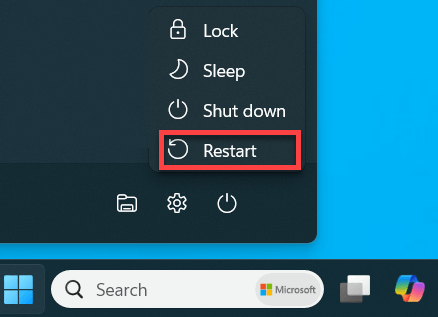
Reboot a Windows: Hit on the Start button and select the Power option. Then choose the restart option to restart your computer.
Reboot a Mac: Head for the Apple menu and choose the restart option.

Reboot an iPhone with a Home button: Hold and press the On/Off button until the slider appears. Slide it to turn off your iPhone. Then, keep holding the Power button to turn your iPhone on.

Reboot an iPhone with Face ID or later: Hold and press the On/Off button while keeping holding both of the Volume buttons. When the slider dropdown appears, slide it from left to right to shut down your iPhone. And then turn it on again.

Method 5. Check date and time settings
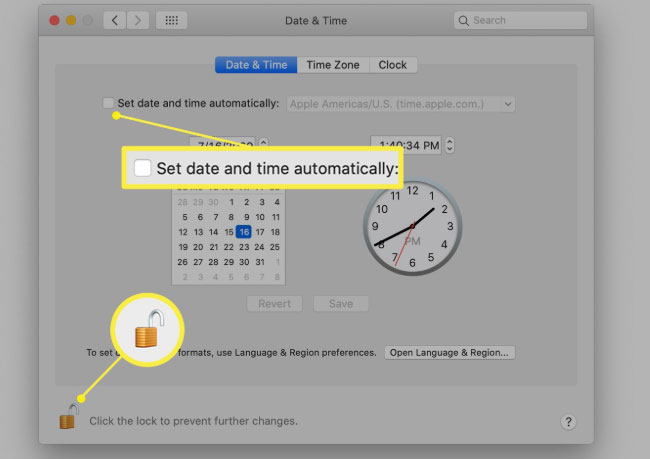
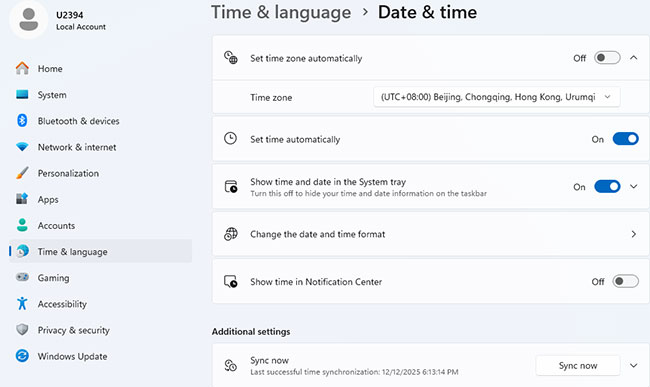
Incorrect date and time settings on your computer can disrupt the communication between iTunes and Apple servers. Ensure your system's date and time are set to Automatic:
On a Mac: Go to System Preferences > Date & Time, then check Set date and time automatically.
On Windows: Right-click on the date/time in the taskbar and select Adjust date/time.
Method 6. Update or reinstall your iTunes
iTunes error 3004 will occur if your iTunes restoring with corrupted files. When you face these annoying iTunes error codes, uninstalling your iTunes and installing it again should be the quickest ways to fix them.
Update your iTunes to the latest version is an alternative way to get your iTunes back to its normal state. You can update your iTunes from Help > Check for updates to get the latest version. Or you can download it from the Apple website.

Method 7. Try using DFU mode for restoration
If the previous methods didn’t work, you can use Device Firmware Update (DFU) Mode to restore your device. DFU mode bypasses the normal boot process, allowing iTunes to restore the device:
Step 1: Connect your device to your computer.
Step 2: Turn off your device.
Step 3: Press and hold the Power button for 3 seconds, then press and hold the Home button (or Volume Down for iPhone 7 and newer) for 10 seconds.
Step 4: Release the Power button, but continue holding the Home/Volume Down button for another 5-10 seconds until iTunes detects your device in recovery mode.

Part 3. FAQs about iTunes Error 3004
-
1. When does Error 3004 usually appear?
It most often appears during an iOS update, while restoring a device, and when verifying firmware with Apple servers.
-
2. Does jailbreaking cause Error 3004?
Yes, it can. Jailbreaking tools often modify the hosts file, which can block Apple’s verification servers and trigger Error 3004.
-
3. Does Apple officially acknowledge Error 3004?
Yes. Apple recognizes it as a connection issue with update servers, though it’s not always documented as a standalone support article.
-
4. Is my data lost because of Error 3004?
Not necessarily. If the restore fails, your data may still be intact. Always restore from a backup once the error is resolved.
Part 4. Summary
That's all. It is the top 7 methods for iTunes error 3004 when updating and restoring iTunes while using iTunes. All the methods are workable and easy to use. Among them, I think TunesKit iOS System Recovery is the best-recommended one, which can fix your iPhone/iPad/iPod within several steps and cause no data loss.


