


How to Transfer WhatsApp Videos to PC: Top Solutions!
Want to transfer your favorite WhatsApp videos to your PC for easier access and better storage? Whether you're looking to free up space on your phone, back up important files, or simply enjoy memorable moments on a larger screen, moving your WhatsApp videos is simple and convenient.
In this guide, we’ll walk you through several effective methods to seamlessly transfer WhatsApp videos to your computer. Protect your memories and streamline your media management—read on to discover the best ways to transfer your videos today!

- Part 1. Transfer WhatsApp Videos to Laptop/PC in One Click [iOS] HOT
- Part 2. Transfer WhatsApp Videos to PC via Email [iOS & Android]
- Part 3. Download WhatsApp Videos to PC from WhatsApp Web [Windows & Mac]
- Part 4. Transfer WhatsApp Videos to PC via Cloud Storage [iOS & Android]
- Part 5. Transfer Videos from WhatsApp to PC via File Explorer [Android]
- Part 6. FAQs about WhatsApp Videos on PC
Part 1. How to Transfer WhatsApp Videos to Laptop/PC in One Click [iOS]
Transferring large videos or multiple files typically takes a long time due to their size. However, TunesKit WhatsApp Transfer simplifies this process, allowing users to transfer, back up, restore, and export WhatsApp data—including messages, photos, and videos—with just one click.
With a user-friendly interface, TunesKit makes it easy to move WhatsApp pictures and other data to your PC, ensuring that your important files are safely backed up and easily accessible. For iOS users who want an efficient solution for managing WhatsApp data, TunesKit WhatsApp Transfer is a highly recommended tool.
Key Features of TunesKit Viber Transfer
Transfer Viber messages between iPhone easily. Transfer, restore, and export Viber data between iOS devices without encountering any hassle.
 600,000+ Downloads
How to transfer WhatsApp video to PC via TunesKit WhatsApp Transfer
Step 1 Connect iPhone to TunesKit
WhatsApp Transfer is a desktop software so you should download and install it in advance before you start using it. Your PC should be Mac or Windows PC. Next, use a USB cable to link your iPhone to this PC and the software will recognize your iPhone at the same time.

Step 2 Back up WhatsApp data
Open the transfer tool and then go to the Backup feature. In this panel, you will see your iPhone's name. Click the Start Backup button and then you will get all WhatsApp data backup including the videos.

Step 3 Export WhatsApp videos to PC
The backup can be found on the Export panel. Go to the Export feature and then move your mouse to the backup you want. You will see an eye-like icon on it and click it to select which videos you need to export to PC. After selection, you can click the Export to Computer button to finish the exportation process.

Part 2. How to Transfer WhatsApp Videos to PC via Email [iOS & Android]
This method is useful for transferring smaller videos by sending them directly to your email. Both iOS and Android users can utilize it.
Step 1. Open WhatsApp and navigate to the chat containing the video you want to transfer.
Step 2. Tap and hold the video until options appear. Select the Share option, then choose your email app like Gmail.
Step 3. Address the email to yourself and tap send.
Step 4. Open your email on your PC. Find the email you sent, and download the attached video.

 Pro-tip:
Part 3. How to Download WhatsApp Videos to PC from WhatsApp Web [iOS & Android]
WhatsApp Web allows you to access your WhatsApp chats on your computer, making it easy to download videos directly from your conversations.
Step 1. Go to web.WhatsApp.com on your PC.
Step 2. On your phone, open WhatsApp and go to Settings > Linked Devices. Tap on Link a Device and scan the QR code displayed on your PC.
Step 3. Go to the chat window where the video you wish to download is located.
Step 4. To view the video in its entirety, click on it. And then click the download icon, usually a downward arrow, to save the video to your PC.

Part 4. Transfer WhatsApp Videos to PC via Cloud Storage [iOS & Android]
Uploading videos to cloud storage is a convenient way to transfer files, especially if you have a slow or unreliable USB connection. For iOS users, iCloud is the best choice for cloud storage while for Android users, Google Drive is recommended here.
4.1 Get WhatsApp Videos to PC via iCloud (iOS)
For iOS users, you can easily transfer your WhatsApp Videos to PC if you have an iCloud backup. Just follow the steps below to make it.
Step 1. Download all of the videos you want from WhatsApp to your Photos app.
Step 2. Go to the Settings > [Your Name] > iCloud options on your iPhone. After choosing Photos, turn on iCloud Photo.
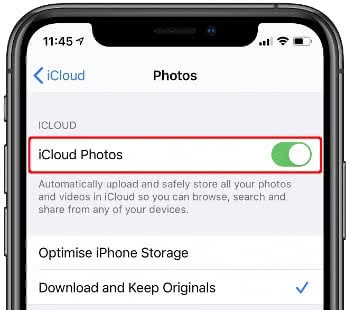
Step 3. If you're using a Windows PC, download and install iCloud for Windows from the Apple website and sign in with your Apple ID.
Step 4. Check the square next to the Photos option. Click the Apply button.
Step 5. You can find your videos on your computer now by going to the This PC > iCloud Photos folder.

4.2 Get WhatsApp Videos to PC via Google Drive (Android)
For Android users, using Google Drive to transfer WhatsApp videos to PC is a workable solution. The following is the how-to:
Step 1. Open the chat with the video in WhatsApp.
Step 2. Tap and hold the video and select the Share option to select your Google Drive as the cloud storage app. Follow the prompts to upload the video to your cloud account.
Step 3. Open Google Drive on your PC and navigate to the folder where you uploaded the video.
Step 4. Select the video and click the Download option to save it to your computer.

Part 5. Transfer Videos from WhatsApp to PC via File Explorer [Android]
This method allows you to directly access your phone's storage through a USB connection, making it easy to transfer videos without the need for internet access.
Step 1. Use a USB cable to connect your phone to your PC. On your phone, choose the option that allows file transfer.
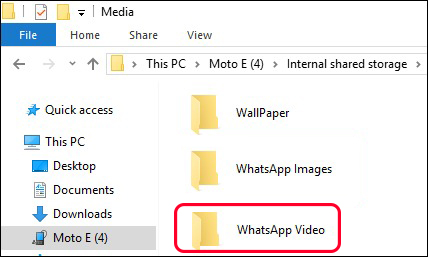
Step 2. On your PC, open File Explorer and then find your phone listed under This PC.
Step 3. Open your phone's storage and go to the folder: Internal Storage > WhatsApp > Media > WhatsApp Video.
Step 4. Select the videos you want to transfer. Right-click and choose Copy, then navigate to the desired location on your PC, right-click, and select Paste.
Part 6. FAQs about WhatsApp Videos on PC
-
1. Where are WhatsApp videos stored on PC?
If you use the WhatsApp Desktop app, files aren't automatically saved to your hard drive until you manually download them. Once downloaded, they usually appear in your computer's default "Downloads" folder unless you choose a specific "Save As" location.
-
2. Why can't I find the WhatsApp folder on my Android?
If you recently updated to Android 11 or later, the folder moved. It is no longer in the root folder. You must look inside Android > media > com.whatsapp > WhatsApp.
-
3. Does transferring reduce video quality?
Methods like USB transfer and Export Chat maintain original quality. However, sending a video back to yourself via a WhatsApp message will compress it. Always use the file transfer methods listed above to keep the original resolution.
Conclusion
By following the steps outlined in this guide, you can easily safeguard your cherished memories and enjoy them on a larger screen. The easiest method is to ask TunesKit WhatsApp Transfer for help. Hope you can take control of your media and keep your WhatsApp videos at your fingertips whenever you need them!


